Writing checks
Moshe checks the writing three ways: English grammar and spelling as you type, Hebrew spelling as you type, and Check Text, which sends a whole sheet to LanguageTool on your server for a closer read. The first two run inside the app itself, offline, on the web, the Mac and Android alike.
As you type: English
English is checked by Harper, a grammar checker that runs in the page. It reads what's on the screen, a paragraph at a time, and underlines what it finds in four colours, one for each kind: spelling, grammar, style and punctuation. It only reads paragraphs that are mostly in Latin letters, so it leaves the Hebrew alone, and it reads the words without the markup around them, footnotes included.
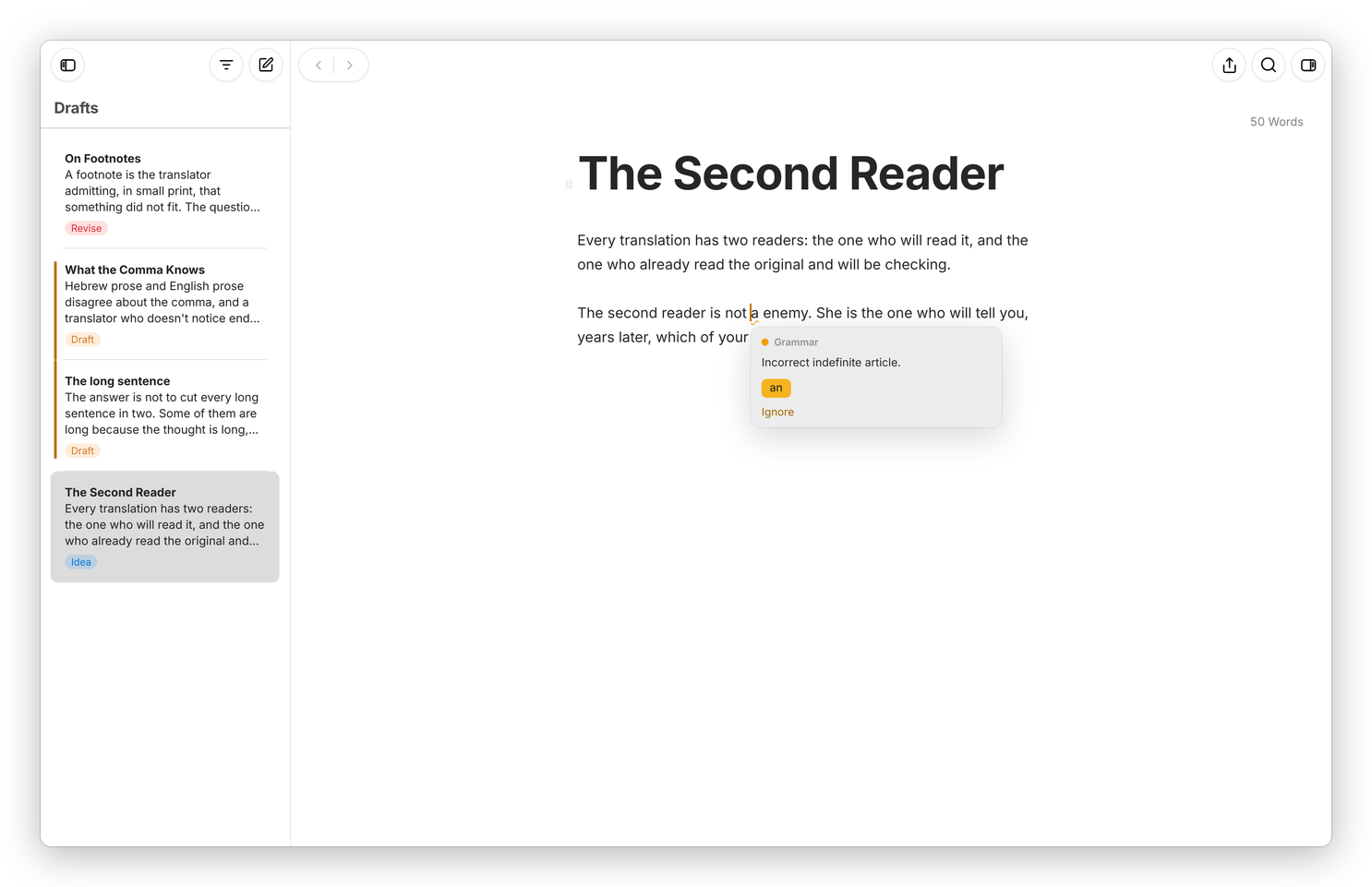 A click on the underline: what's wrong, the fix, and Ignore.
Click an underlined word to see what's wrong. Click a suggestion to put it in, Ignore to leave it, and for a spelling, Add to Dictionary to teach Moshe the word. Ignoring is for that sheet only, and the dictionary is the whole library's: it's kept in the library's settings, so every device has it, and the Hebrew check uses it too.
Settings › General turns it off with Check Grammar and Spelling While Typing (English), and the menu beside it picks the English: American, British, Australian, Canadian or Indian.
As you type: Hebrew
Hebrew spelling is checked by Hunspell with Hspell's dictionary, the same open-source pair many Hebrew spell checkers use. It reads the Hebrew words on the screen and underlines the ones it doesn't know, in any paragraph, Hebrew or English. Niqqud is set aside when it looks a word up, and geresh and gershayim (׳ ״) are read as the plain quote marks, so צ׳יפס and צ'יפס are the same word to it.
Click an underlined word and it looks for suggestions, then shows them with Ignore and Add to Dictionary, just like the English. Check Hebrew Spelling While Typing in Settings › General turns it off.
Check Spelling While Typing is the browser's own spelling check, which Moshe leaves on for any other language. On the Mac, the system's spelling and grammar also underline as you type, and Edit › Spelling and Grammar turns them off.
Check Text
Harper is quick and catches a lot, and LanguageTool catches more. For a closer read before something goes out, open the dashboard's Annotations view and press Check Text. Moshe sends the sheet's English, without the markup, to LanguageTool on your server, lists what it found under Spelling, Grammar, Style and Punctuation with how many of each, and underlines them in the text in the same colours. Click one in the list to jump to it, then fix or ignore it the same way. Check Again reads the sheet again after you've made changes.
The button only shows up when the server has LanguageTool. LanguageTool is a big Java program, so on my server it isn't kept running: the first check starts it, which is why the button says Waking the checker… for a few seconds, and it stops again after 15 minutes with no checks. languagetool/README.md explains how to set it up that way, and Your own server how to point Moshe at it.
In the Mac and Android apps, Check Text works when the app uses the server's page, since a folder on the device has no server behind it to ask.
A note on privacy
Harper and Hunspell never send anything anywhere: they're WebAssembly that runs in your browser or the app, and they work with no network. Check Text sends the sheet's text to your own server, which passes it on to the LanguageTool it's set up to use. Mine runs on the same machine as the server, so the text never goes anywhere else.