The Android app
The Android app is Moshe on the phone: the same page as the web app, laid out for a small screen, with the library kept in a folder on the phone. It's how I read through a chapter on the go, add a line to a translation, or drop a note into the Inbox.
How to build and install it is in Install.
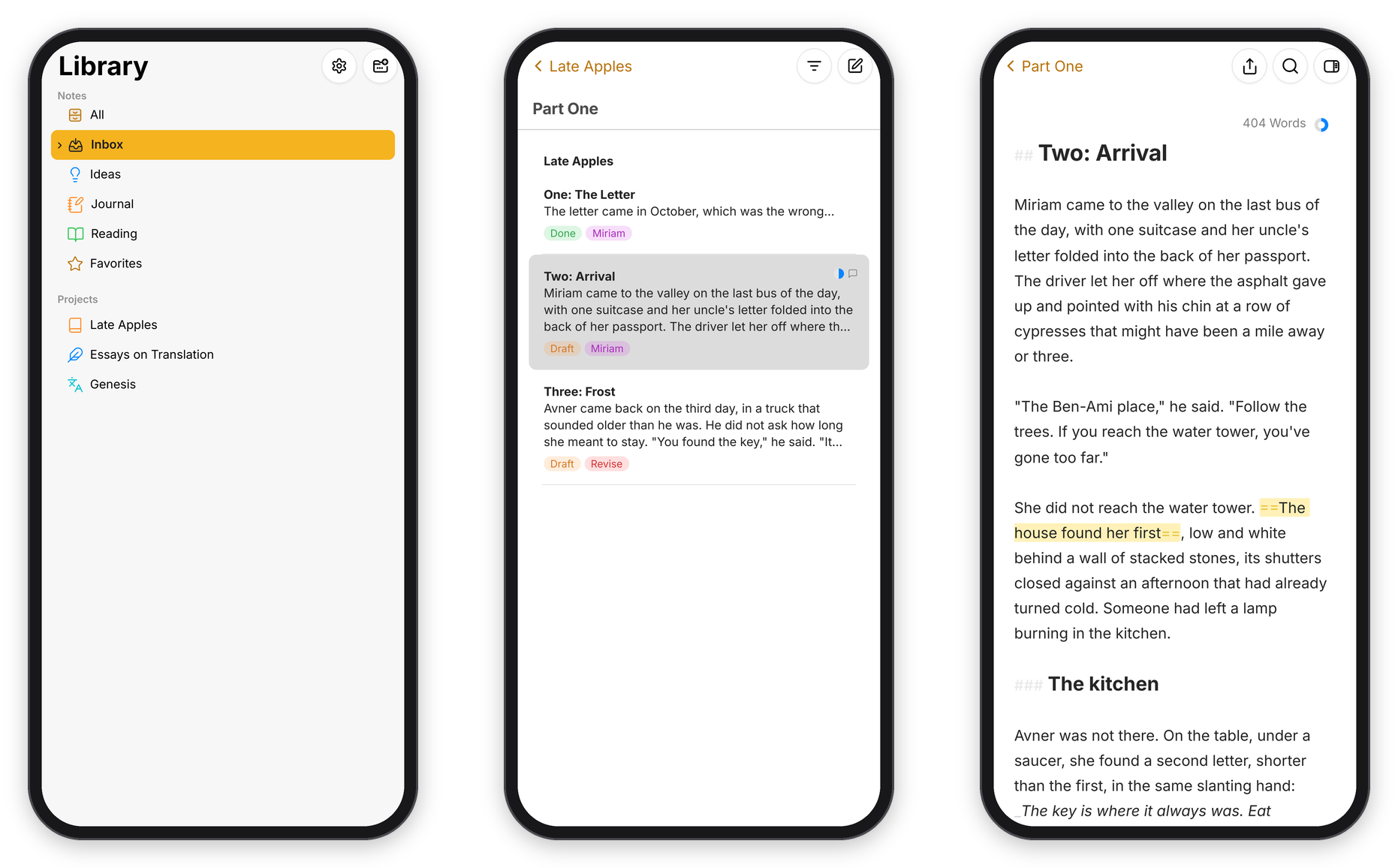 The library, the sheets of a group, and a sheet in the editor.
One pane at a time
On a phone Moshe shows one pane at a time. The first is the Library, with the gear for Settings and the add button at the top. Tap a group and its sheets slide in, with the group's name and a way back at the top left; tap a sheet and the editor opens, with the group's name to go back. The phone's own Back goes back a pane too, and only leaves Moshe from the library.
The editor's bar has the export, search and dashboard buttons, and the translation button when the sheet has a translation. The dashboard slides up from the bottom, and the handle at its top closes it.
When the on-screen keyboard is up, on a phone or a tablet, a bar of markup sits on top of it: a heading, Strong, Emphasis, Mark, Comment, Link, Footnote, a list, a numbered list, a quote and Sketch, with Undo and Redo, and a button to put the keyboard away. It scrolls sideways on a phone when there's more than fits, and on a tablet the buttons sit in the middle. With a keyboard case there's no on-screen keyboard, so there's no bar either, and the keys do it all.
Settings on the phone is a list of its panes, General, Sidebar, Markup, Backup, Sync and Styles, each opening over the list with a way back.
Where the library lives
The first time it opens, Moshe asks Where is your library?, with three answers:
- A folder on this phone. For a phone with Syncthing: pick the synced folder that holds your library, once, through Android's folder picker, and Moshe reads and writes it directly, so Obsidian on the phone sees the same files. Moshe looks for changes every 15 seconds while it's open and whenever you come back to it.
- Moshe's own folder, synced with the server. For a phone without Syncthing. The library is kept in Moshe's own storage on the phone, and Moshe keeps it in step with your server over WebDAV. After choosing this, open Settings › Sync in Moshe, choose A Moshe server, and type the server's address and a device token made in the server's own Settings › Sync. WebDAV sync explains it step by step.
- The server's page, with no folder. The web app in Moshe's window, as in a browser. Nothing is kept on the phone, so it needs a connection. Type your server's address under it. If you build the app for yourself,
moshe.defaultServer=https://your.server/inandroid/local.propertiesfills it in for you.
To change it later, long-press Moshe's icon on the home screen and choose Library.
Sharing into Moshe
Share text from any app, a browser, a messaging app, an email, and choose Moshe: the text becomes a new sheet in the Inbox, named from its first line. It's the quickest way to keep a passage or an idea for later.
Exporting on the phone
Export works as everywhere else. A PDF goes through Android's print window, where you choose Save as PDF, and the other formats open Android's own screen for choosing where to save the file.
A few things to know
- Hebrew paragraphs run right to left on the phone as on the Mac, and translation mode works, in two narrow columns; Arrange Top/Bottom in the second editor's … menu puts one above the other instead.
- Pictures in a sheet show from the library folder, like on the Mac.
- The app is its own app,
xyz.tiresia.moshe, so it doesn't touch anything else on the phone, and a test build installs beside it as "Moshe dev".