Backups
This page is about the backups the Moshe server keeps of your library, and how to get a sheet back from one. Since the library is a folder of plain files, you can also back it up any way you back up a folder, but the server's own backups are the ones you can browse from inside Moshe.
What the server keeps
A Moshe server set up with a backup folder (see Your own server) looks at the library every ten minutes, and makes a backup when something changed and the last one is at least an hour old. It keeps them like this:
- hourly backups for the last 12 hours of work,
- daily backups for the last 7 days of work,
- weekly backups for the past 6 months of work,
- and any backup made with Backup Now, until you delete it.
Each backup is a whole copy of the library's sheets, the folders' settings, the library's settings and the Trash, as they were at that moment. A file that hasn't changed since the backup before is a link to the same copy, so a backup only costs the space of what changed. The backups are kept outside the library, which means no sync ever carries them to your other devices.
Settings › Backup
Settings › Backup shows how they're kept and when the latest one was made, with two buttons: Backup Now, for a backup before you do something drastic, and Browse Backups…. On the Mac, File › Browse Backups… opens the same window.
Getting a sheet back
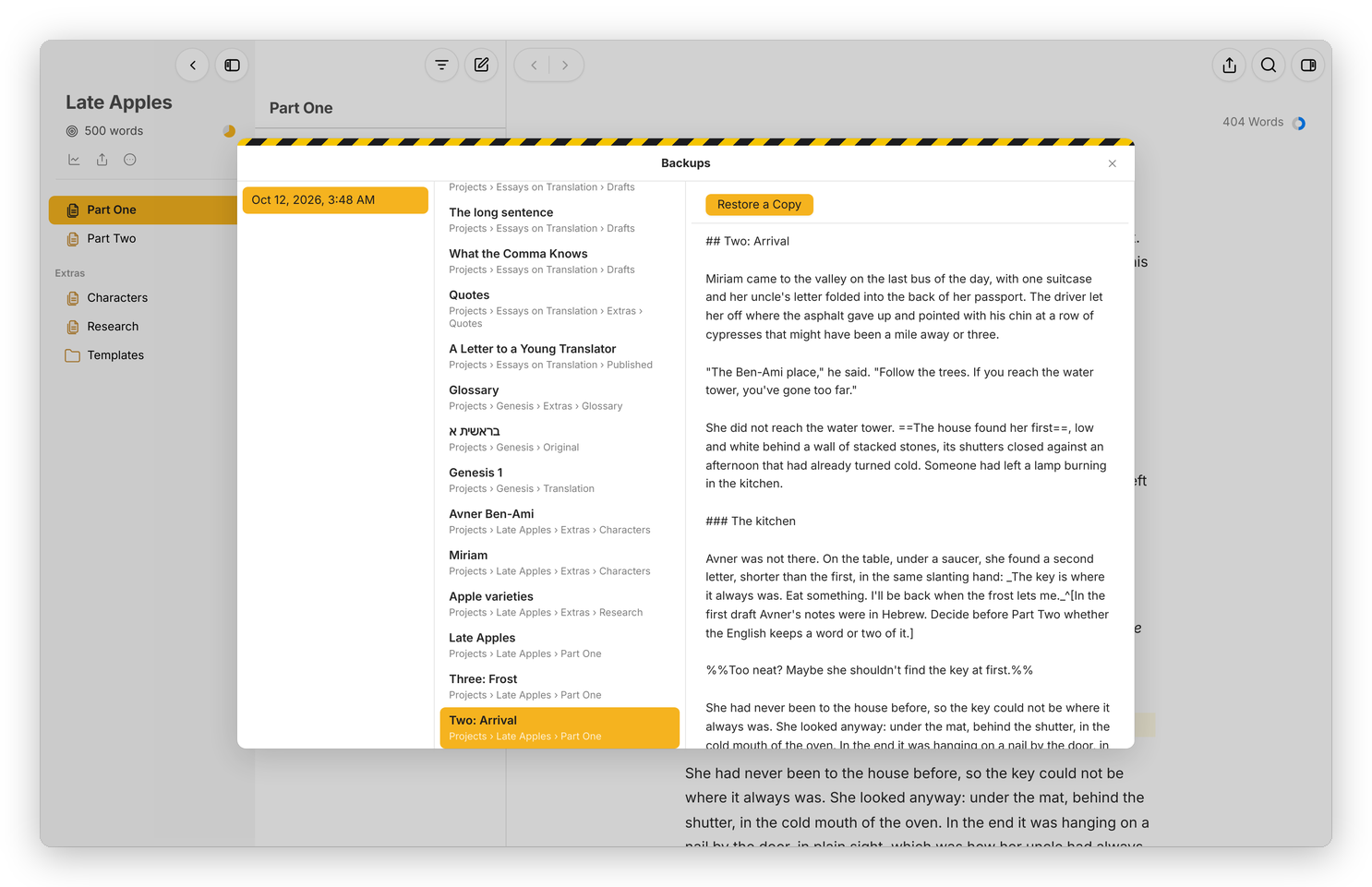 A backup on the left, its sheets in the middle, and the one I picked on the right, ready to restore.
Browse Backups… opens a window with three columns. On the left are the backups, newest first. Click one and its sheets show in the middle, with a Filter field to find one by its name or its text. Click a sheet and its text shows on the right, as it was then.
Restore a Copy puts that text back as a new sheet, right beside the sheet it came from, with the date in its name, like "Two: Arrival (from 10/11/2026)". Nothing is overwritten, so you can compare the two, take the paragraph you lost, and move the copy to the Trash when you're done.
A deleted sheet is usually easier to get back from the Trash: select Trash in the library, then right-click the sheet and choose Put Back, or double-click it.
A library on a device
When the Mac or Android app works on a folder on the device, there's no server on that device to back it up. If the device syncs with a Moshe server over WebDAV, that server's backups include everything that reached it, and Settings › Backup says so; open Moshe on the server to browse them. If the folder is also a server's library through Syncthing, as mine is, that server backs it up the same way. Otherwise, Time Machine or any other backup of the folder does the job.