The library
The library is the left pane, where everything you write is kept in order: the Notes section with its Inbox, and the projects. This page explains both, the sheet list next to them, and the Trash. Every group here is a folder on disk.
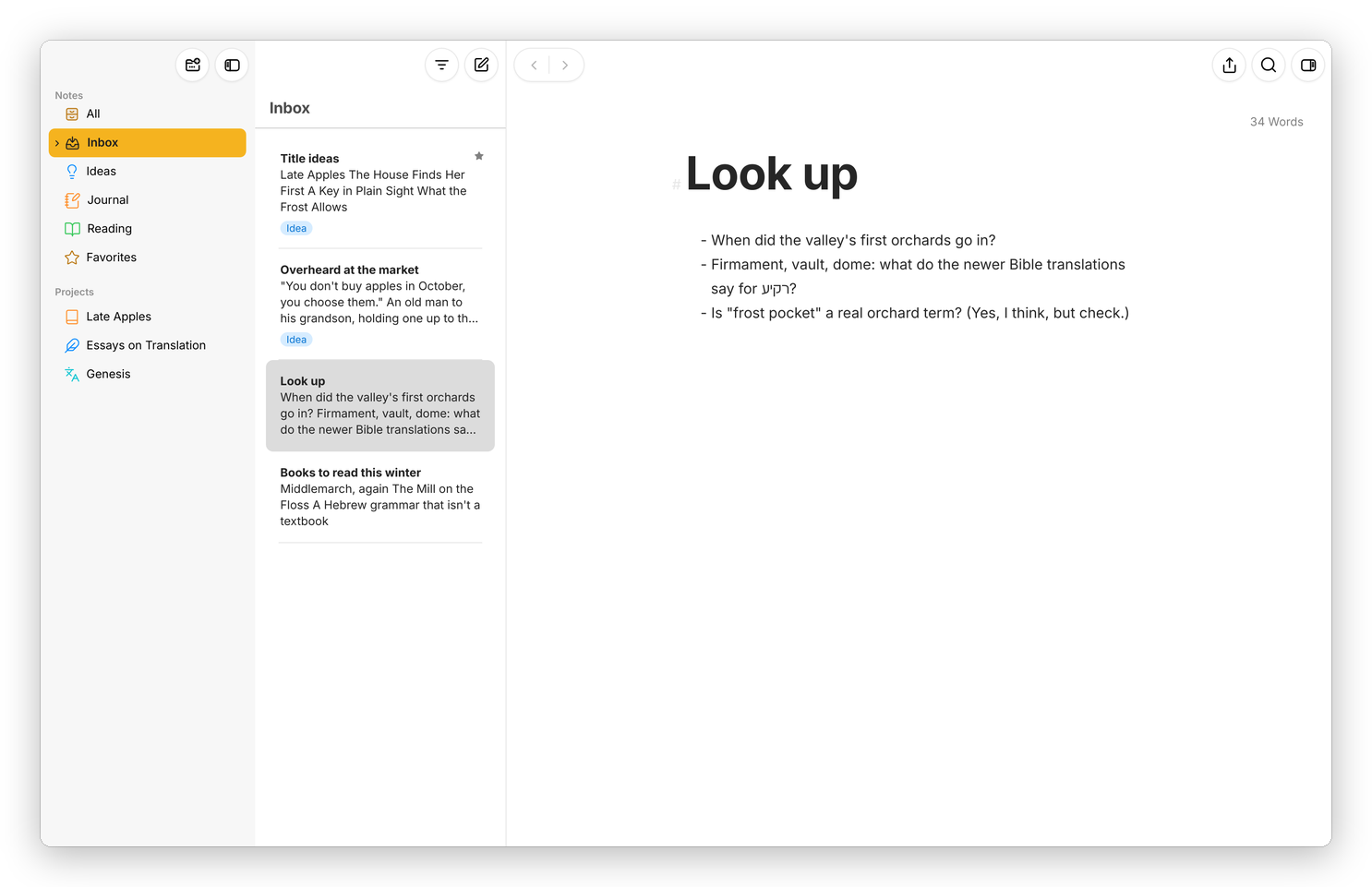 Notes on the left, with the Inbox selected; its sheets in the middle; one of them in the editor.
Notes and the Inbox
The "Notes" section is for loose writing that doesn't belong to a project. Its first rows are All, every sheet in Notes, and the Inbox, which is where a new sheet goes when nothing else is selected, and where shared text and sheets from outside land. Under them are your groups and filters (filters have a page of their own, Keywords and filters), then Favorites once something is a favorite, and the Trash once something is in it.
A "group" holds sheets and other groups, as deep as you like. Selecting a group shows ALL its sheets in the sheet list, including the ones in the groups inside it, each under its group's name, so you can see a whole book or just one chapter.
To add things, use the button at the top of the library, which offers New Group… (⇧⌘N), New Project…, New Sheet (⌘N), New Material Sheet and Import… (⇧⌘I). The small … button that shows up beside Notes when the pointer is over it adds a group or a filter there. Right-click any group for the rest: New Sheet, New Group…, New Filter…, Edit… (its name, icon and colour), Goal…, Statistics, Sort by, Export…, Convert to Project and Move to Trash.
Projects
A "project" is a book, a blog, a paper or a translation: a world of its own. Click one under Projects and the library shows that project alone, with its title and goal at the top, its groups, and its "Extras" below them. The three small buttons under the title are Statistics, Export (the whole project, without its material sheets) and More, which has Edit Project…, Add Goal…, New Filter…, Duplicate Project, Share Project… (the whole project as a zip) and Archive Project. The arrow at the top left closes the project.
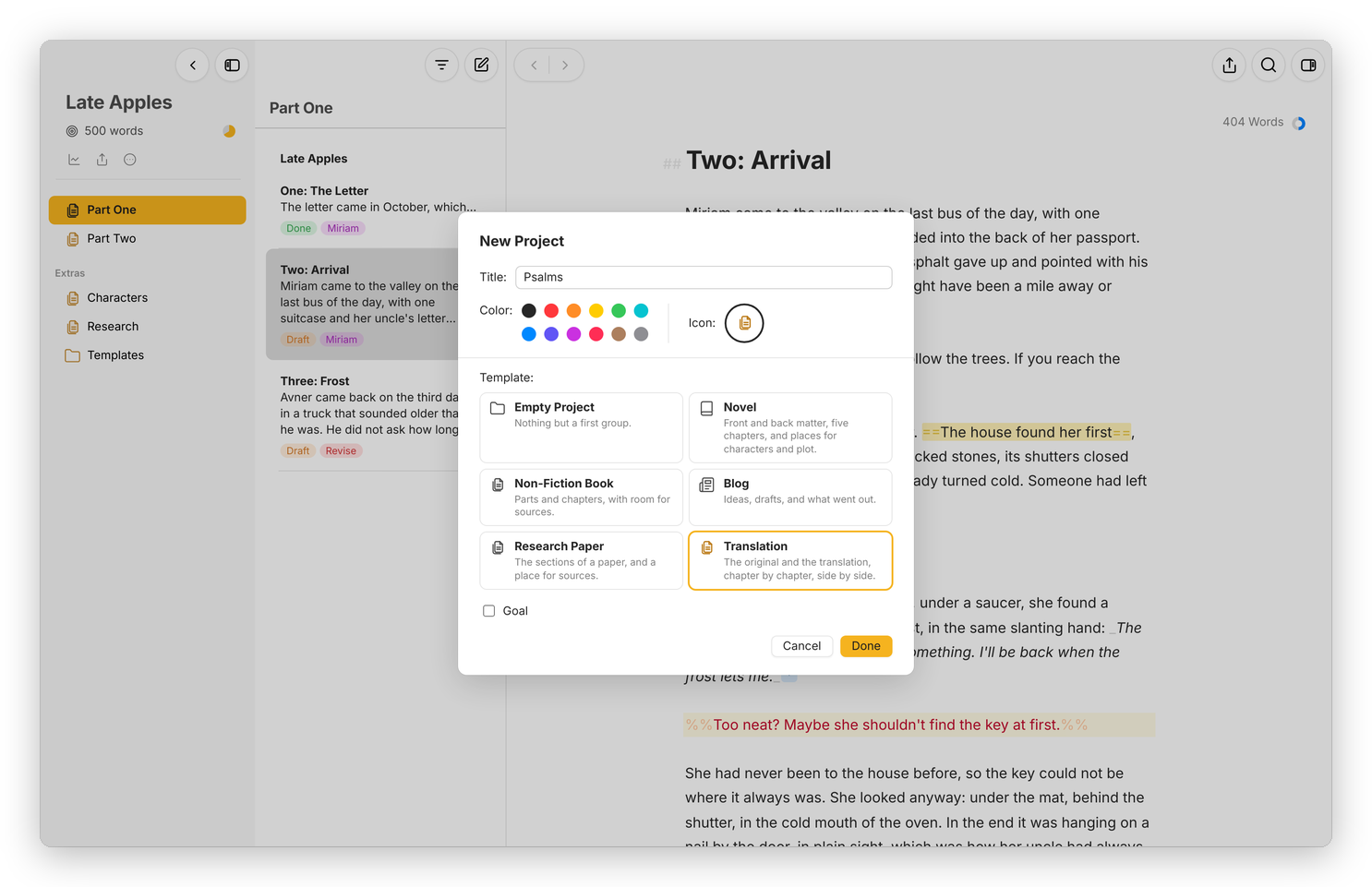 New Project… offers six templates, each with its own groups and Extras.
New Project… starts from a template: an empty project, a Novel, a Non-Fiction Book, a Blog, a Research Paper or a Translation, each with the groups it needs and a few Extras groups. You can also drag a group from Notes onto the Projects heading to make it a project.
The Extras are for everything that isn't the text: notes, characters, research, a glossary. Every project's Extras has a Templates group, and dragging a sheet into it or out of it copies the sheet instead of moving it, which is how you keep a sheet to start from. A sheet in the project but in no group shows up under Pending. A project you're done with goes to the Archive, at the bottom of the library, and comes back with Restore from Archive.
The sheet list
The middle pane lists the sheets of whatever is selected, with the title and a few lines of each. Small marks on a sheet tell you more: a ring for a goal, a star for a favorite, a paperclip for a "material sheet" (notes and research, left out of export, statistics and goals), a speech bubble for attached notes, and its keywords underneath.
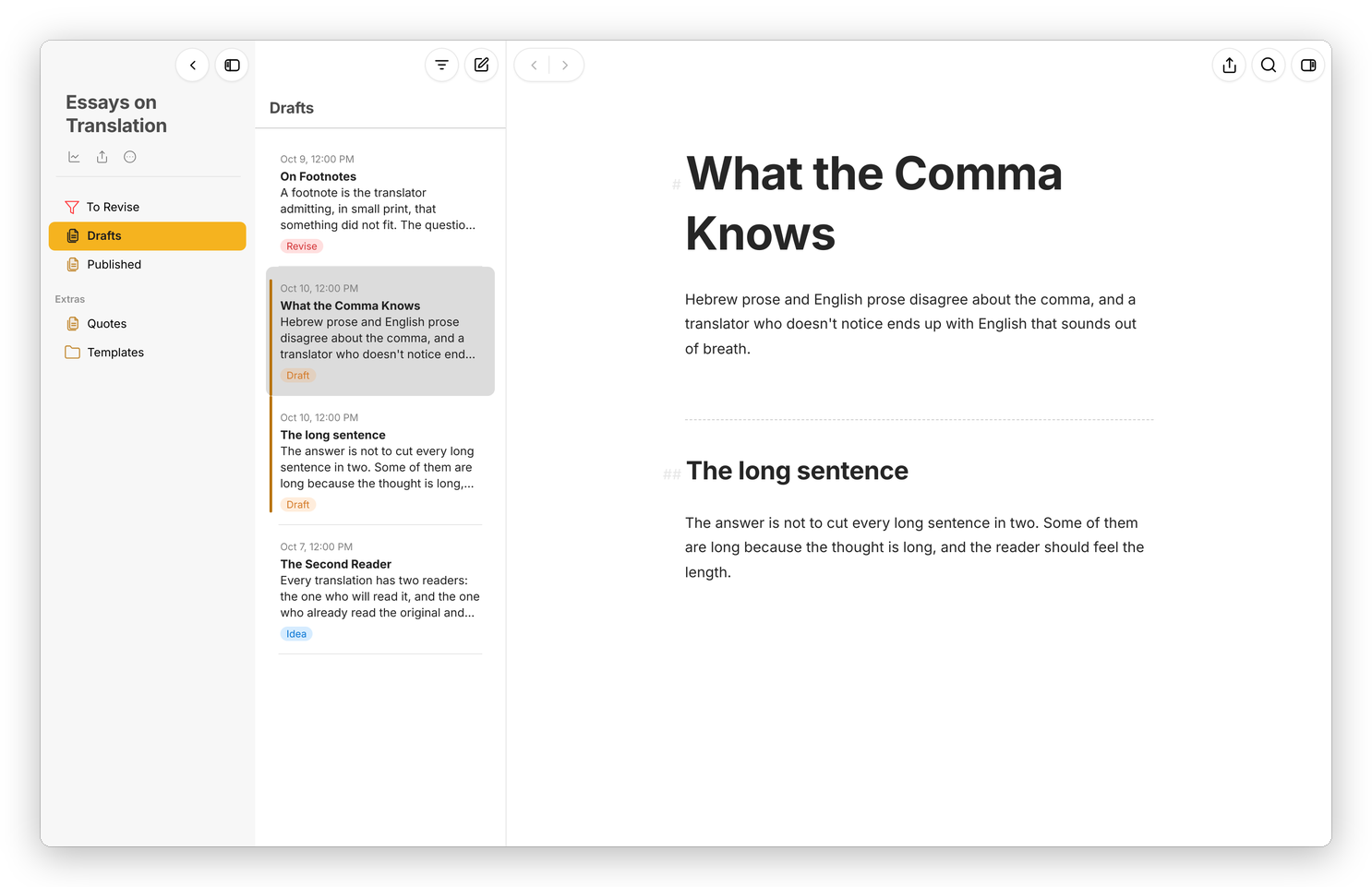 Two glued sheets, marked by the line on the left, with their dates shown.
- Click a sheet to open it, Shift-click or ⌘-click to pick several (they open one after another in the editor), and ⌥-click to open one in the second editor.
- Drag sheets to reorder them, or onto a group in the library to move them there.
- The Sort button beside the title sorts the group Manually, By Title, By Modification Date or By Creation Date, with Reverse Order.
- The Filter button at the top finds sheets in the list as you type, by title, text or keyword.
- Right-click a sheet for Open in Second Editor, Add to Favorites, Mark as Material, Keywords…, Goal…, Glue Sheets, Merge Sheets, Duplicate, Rename File to Match Title, Export… and Move to Trash (⌘⌫).
Settings › Sidebar chooses what the library shows. Global Filters adds a section at the top with All, Last 7 Days, Favorites and the Trash, across the whole library, and Advanced… has Always Show Trash, Include Projects in Global Filters, Show Inbox Counter and Show Project Archive.
Finding a sheet
Open Quickly (⌘O) finds a sheet, a group or a project by its name or by what's written in it, and goes there. ⌘[ and ⌘] go back and forward through the sheets you've opened, and ⌥⌘↑ and ⌥⌘↓ go to the sheet above or below in the list.
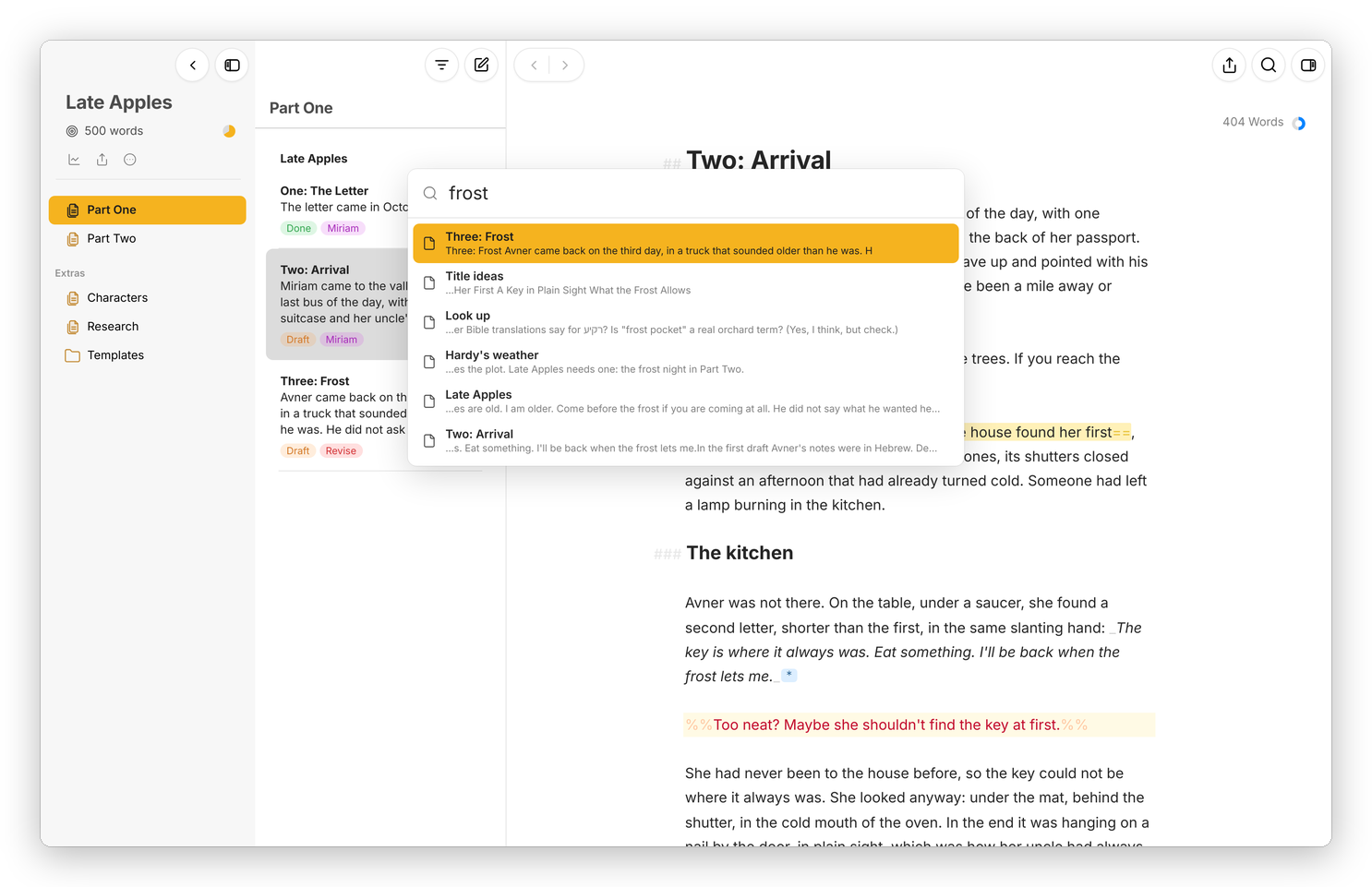 Open Quickly, with every sheet that mentions frost.
The Trash
A sheet or group you delete goes to the Trash, at the path it had, and stays there until you empty it. Right-click it for Put Back or Erase…, or double-click it to put it back. Empty Trash at the bottom of the list erases everything in it. A project has a Trash of its own, inside the project.