Focus and the typewriter
This page is about writing with nothing in the way: hiding the panes and the bars (focus mode), and the typewriter options that keep your eyes on the line you're writing.
Fewer panes
⌘1 shows all three panes, ⌘2 hides the library and leaves the sheet list and the editor, and ⌘3 leaves only the editor. Pressing ⌘2 or ⌘3 again brings all three back. The button at the top left of each pane does the same with the mouse, and you can drag the edge between two panes to make one wider; a double-click on the edge puts it back.
Focus mode
Focus mode hides everything but the page, whether I'm typing or writing by hand. Press the focus button at the top of the sheet, or ⌘., and the library and the sheet list go, the dashboard closes, the counter and the goal ring disappear, and every bar fades out, the pens on a handwritten page and the bar above a tablet's keyboard too. The page gets the whole screen.
The bars come back when you want them. Move the pointer, or hold the pen just over the glass, up at the top of the window, and they're back for as long as you're there. On a tablet, tap the page with a finger and they come back for a few seconds. As soon as you type or write again they go away. The focus button (or ⌘. again) leaves focus mode and brings the panes back as they were, and on a handwritten page it's in ⋮ as well. ⌃⌘F makes the window full screen, which together with focus mode leaves you alone with the page.
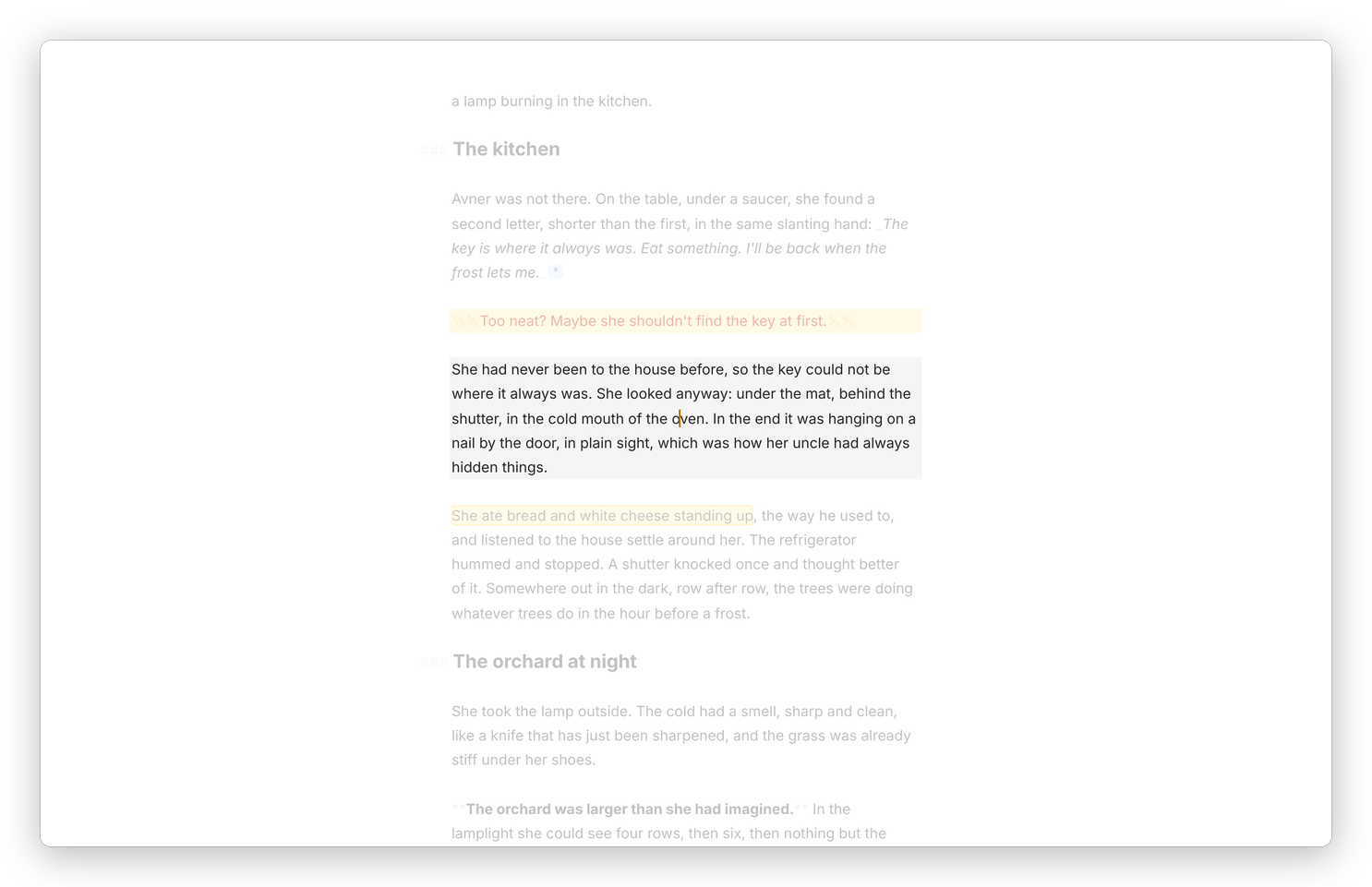 Focus mode, with the line marker and paragraph highlighting: the paragraph I'm in is bright and the rest fades.
The typewriter
Settings › General has three typewriter options under Typewriter, and the Mac app has the same in its View menu.
- Line Marker puts a soft band of colour under the line with the cursor.
- Highlight fades everything but the current Line, Sentence or Paragraph, so the text you're in stands out and the rest stays readable but quiet. Off turns it off.
- Fixed Scrolling keeps the line you're typing at one height on the screen, at the Top, Middle or Bottom, or Variable, instead of letting it creep down to the bottom edge. It only moves the text as you type, so you can still scroll freely to read back.
Paragraph highlighting suits translating, since a paragraph is the unit you work on, and sentence highlighting suits a slow second read.
The page itself
A few settings in Settings › General change how the text sits on the screen while you write:
- Line Width sets how many characters fit on a line, 64 to start with, and the text stays centred however wide the window is.
- Font Size is also ⌘+, ⌘− and ⌘0.
- Show Page Background draws the text on a page, with the window around it.
- Insertion Point chooses a cursor in the Text Color or the Accent Color.
On the Mac, View › Show Paragraph Numbers puts each paragraph's number in the margin, which is handy when someone refers to "the fourth paragraph on page two".
More about fonts, spacing and colours is in Themes and typography.