One way to use it
This page walks through how Moshe fits into a working day: where the library lives, how a translation goes, how the work goes out, and what the phone is for. It's one setup among many, so take what's useful and leave the rest.
One folder for everything
Say the writing library is a folder called Writing inside an Obsidian vault. Syncthing carries it between a Mac and a small server, which means the same folder is on both, and Moshe opens that folder on each of them. On the phone, the Android app keeps a copy of it in step. Open a sheet in Obsidian to link it from a note and it's the same file you were just typing in Moshe, and change it there and Moshe shows the change a moment later.
This is the part that matters most. You never have to ask where a text is, or export it to get at it, because it's always just a Markdown file in a folder you can see in Finder.
Translating
For a book or a long piece, make a new project from the Translation template, which gives you an "Original" group and a "Translation" group, and in the Extras a Glossary, a place for Queries and a place for Notes. Put the original in Original, a chapter to a sheet, and press ⇧⌘T.
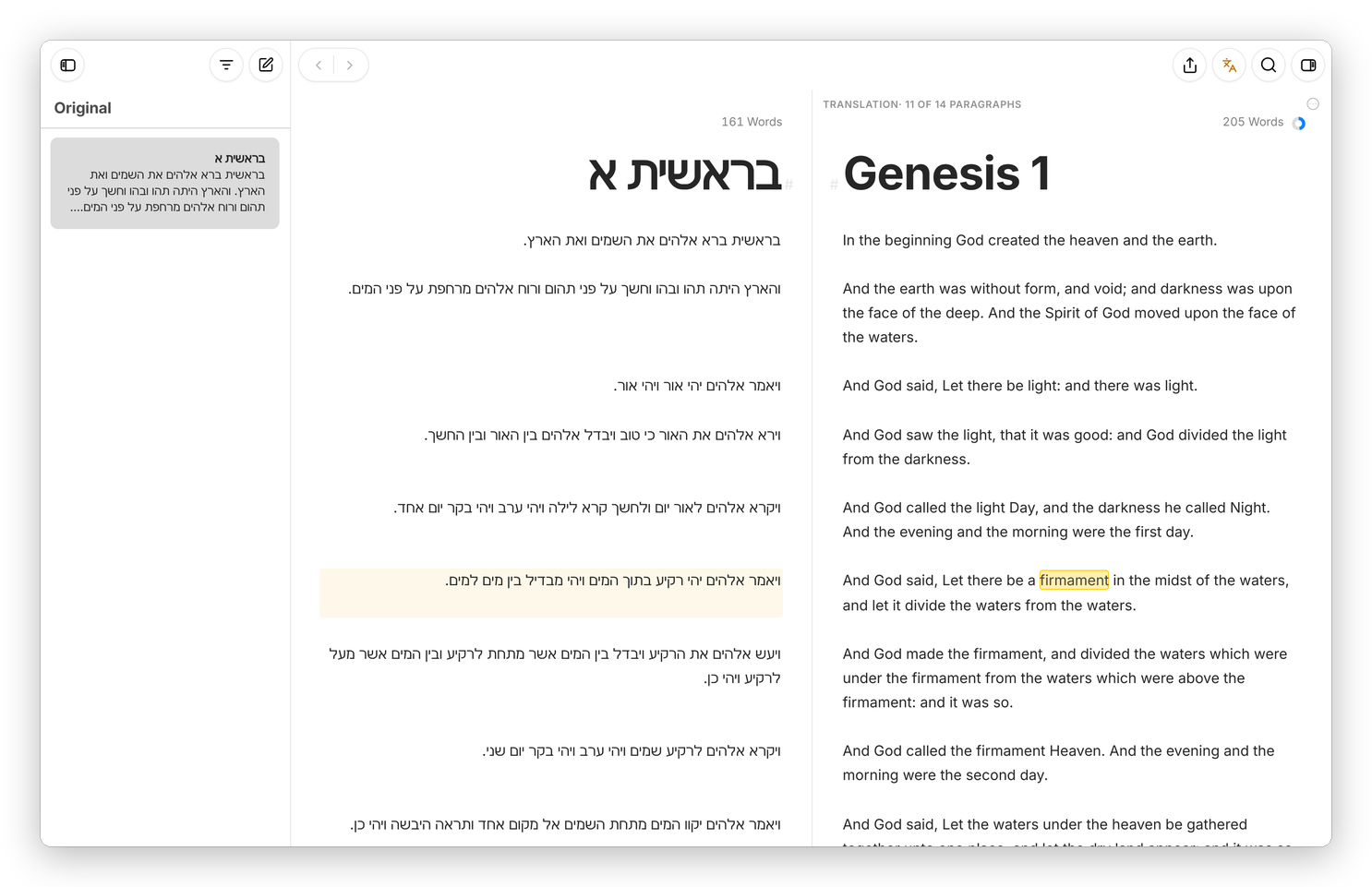 The Hebrew on the left, the English on the right, each paragraph level with its original.
Moshe makes the translation's sheet for you if it isn't there yet, with the same file name, a heading mark wherever the original has a heading, and an empty line for each paragraph, and from then on you just fill it in. The paragraph you're in lights up on the original's side, and the bar above the translation says how many paragraphs are done, which is a nice thing to watch go up through the day. Hebrew spelling is checked as you go, along with the English.
When a word needs a decision, select it and add an annotation, or write a %%comment%% right in the text. The comments never leave Moshe, and Revision Mode (⇧⌘E) lists them all in the dashboard when you go back through a chapter.
Writing and editing
Your own writing lives in the same library, in projects with groups for the parts and sheets for the sections. A goal on a sheet, or an "every day" goal on a whole project, puts a ring next to the word count that fills as you write. When you want nothing but the text, ⌘. hides everything else, and the typewriter's paragraph highlighting fades all but the paragraph you're in.
Editing someone else's text works the same way. A Word file goes in with Import… (⇧⌘I), its comments and tracked changes come in as Moshe's own, and you work on it like any sheet. A DOCX in the Revision style sends your deletions and insertions back as Word's tracked changes, and your comments as Word comments.
Sending it out
Most people who read your work want Word files, so a lot of what leaves Moshe is DOCX. Select the sheets and press ⇧⌘P, or use the export button under the project's title for the whole thing, pick the style and the page size, and check the preview before you press Export. Before it goes, Check Text in the dashboard sends the English to LanguageTool on your server, which catches what the as-you-type checks miss.
Notes and the Inbox
Everything that isn't a project goes into the Inbox: a line you overheard, a word to look up, a title idea. On the phone, share text into Moshe from any app and it becomes a new sheet in the Inbox. When the Inbox fills up, go through it and drag what's worth keeping into a group or a project.
The Mac and the phone
At a desk, the Mac app works on the folder on the Mac and has a full menu bar with the usual keys, so your hands know where everything is. On the go, the Android app shows one pane at a time, library, then sheets, then the editor. In a browser anywhere else, open your server's copy and sign in.
The server also keeps backups, hourly for the last twelve hours, daily for a week and weekly for six months, so a paragraph deleted on a bad afternoon is never really gone: Browse Backups… brings back any sheet as it was.
Basically, instead of one app for writing, a translation tool on the side and notes somewhere else, you have one app on every device, and all of it is files in a folder you own. If you want to set up something similar, start with Install.