What is Moshe?
Moshe is my writing app: a library, a sheet list and a plain editor for long texts, whose library is a folder of Markdown files instead of a database. I write, translate and edit in it, and because every sheet is a plain .md file, Obsidian, Syncthing and any text editor can open the same writing at the same time.
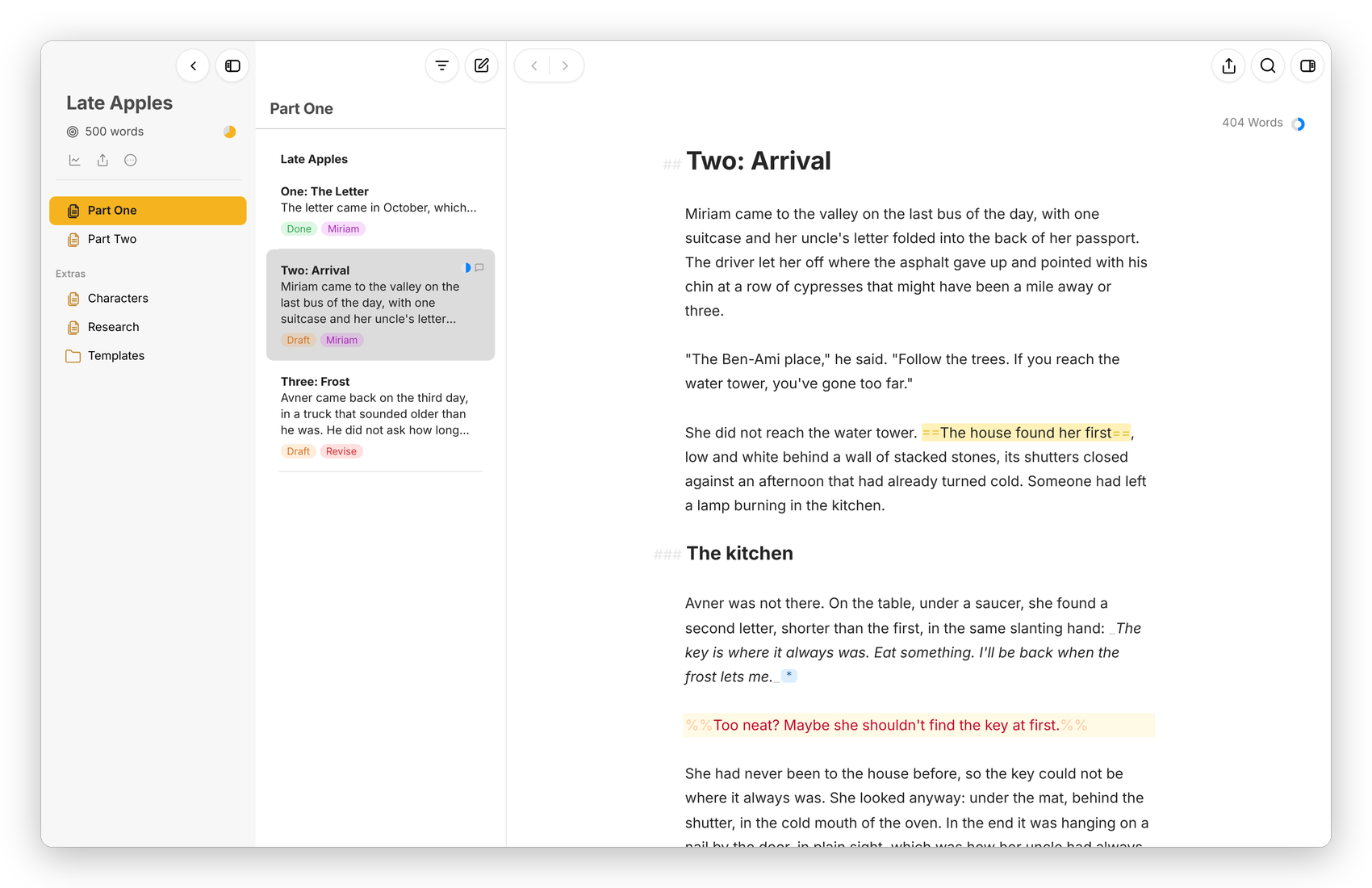 The library, the sheet list and the editor: a chapter of a novel, with a highlight, a footnote and a comment.
What it does
Moshe has three panes. On the left is the "library": the Notes section with its Inbox, and the projects, each with its own groups. In the middle is the "sheet list", a few lines of every sheet in the group you picked. On the right is the editor, where the Markdown stays visible, with its tags greyed out so the text reads cleanly. ⌘4 opens the "dashboard" beside the editor, which shows the sheet's goal, keywords, outline, footnotes and notes.
Everything I need for keeping a long text in order is there: groups inside groups, sheets glued together so they read as one text, keywords and filters, goals for a sheet or a whole project, favorites, Extras for the material that isn't the text, and project templates for a novel, a non-fiction book, a blog, a research paper and a translation.
Then there's the part most writing apps don't have, which is translation mode. ⇧⌘T puts a sheet and its translation side by side, paragraph beside paragraph, and keeps them level while I write. Hebrew runs right to left, the spelling is checked in Hebrew and in English as I type, and the exports come out right to left where the text is Hebrew.
Basically, instead of one app for writing, another for translating and Obsidian for notes, I have ONE place to write, and the files stay mine.
What works where
Moshe is a web app first. The Mac and Android apps wrap the same page, so they look and work the same, and add what a web page can't do well.
| Web | Mac app | Android app | |
|---|---|---|---|
| The library, the sheet list, the editor, the dashboard | Yes | Yes | Yes, one pane at a time |
| Translation mode | Yes | Yes | Yes, in two narrow columns |
| Where the library lives | On the server | A folder on the Mac, or the server | A folder on the phone, Moshe's own folder synced with the server, or the server |
| A full menu bar | No (the same keys work) | Yes, item for item | No |
| English and Hebrew checks as you type | Yes | Yes, plus the Mac's own spelling | Yes |
| Check Text (LanguageTool) | Yes, if the server has it | When it uses the server | When it uses the server |
| Export to PDF | Through the browser's print window | Saved straight to a file, with page numbers | Through Android's print window |
| Export to DOCX, ePub, HTML, Markdown | Downloaded | A save panel | Android's save screen |
| Sharing text into Moshe | No | No | Yes, from any app, into the Inbox |
| Backups | Kept by the server | Kept by the server it syncs with | Kept by the server it syncs with |
What it works with
- Obsidian. The library can be a folder inside an Obsidian vault. Highlights, comments, footnotes and links between sheets are written the way Obsidian writes them, so both apps show the same thing. See Obsidian and Syncthing.
- Syncthing, iCloud Drive or Dropbox. Anything that syncs a folder can carry the library between devices, and Moshe merges two versions of the same sheet instead of leaving conflict copies.
- WebDAV. For a device with no Syncthing, the server offers the library over WebDAV, and the Mac and Android apps can also sync with any other WebDAV folder, like Nextcloud. See WebDAV sync.
- LanguageTool. Check Text sends a sheet to LanguageTool on your own server. See Writing checks.
- Word. DOCX goes in, with its comments and tracked changes, and DOCX comes out, in any of the export styles. See Export and import.
- Scripts and bots. An HTTP API and a command line make a sheet or add to one, so Apple's Shortcuts, a bot or a cron job can drop text in. See Sheets from outside.
Next step
If you want to try it, start with Install, which takes you from the web app to the Mac and Android apps. If you'd rather see how it fits into a working day first, read One way to use it.