Goals and the dashboard
This page covers goals, which turn a word count into a ring that fills as you write, the statistics behind them, and the "dashboard", the pane on the right that shows everything about a sheet that isn't its text.
Goals
A goal can sit on a sheet, a group or a whole project. For a sheet, right-click it in the sheet list and choose Goal…, or press the + beside Progress in the dashboard. For a group, right-click it in the library. For a project, use Add Goal… in the project's More button, or tick Goal when you make the project.
The goal window has three parts:
- About, At least or At most, and for a group or project also Every day.
- The number.
- What to count: Words, Characters, Characters Without Spaces, Sentences, Paragraphs, Lines, Pages or Minutes of Reading.
Tick Deadline to add a date, and Moshe works out how much a day you still need. "At most" is for a text with a limit, like an abstract, and its ring turns red when you go over. "About" is reached within ten percent either way. "Every day" counts what you wrote today in the group or project, which suits a long project best, since a whole book's ring hardly moves in a day.
A sheet with a goal shows a small ring beside the counter at the top of the editor, and in the sheet list. Click the ring for the numbers, how many are left and, with a deadline, how many a day, plus Edit Goal…. A project's goal shows under its title in the library. Material sheets never count toward a goal.
Statistics and history
Statistics in a group's right-click menu, or the chart button under a project's title, shows the group's numbers: sheets, characters with and without spaces, words, sentences, paragraphs, pages, and how long it takes to read slowly, at an average pace, fast and aloud.
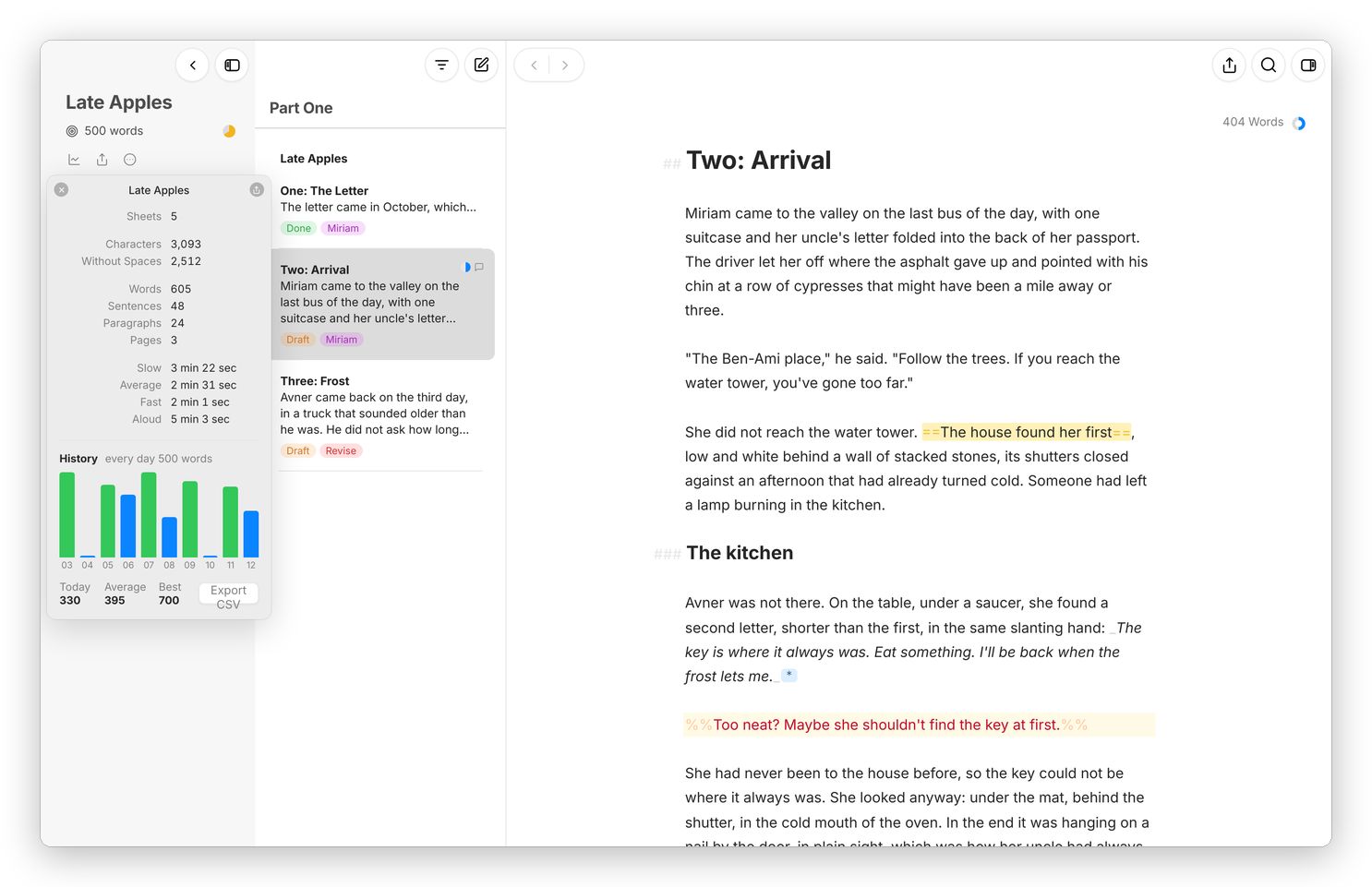 A project with an "every day" goal of 500 words: today, the average, the best day, and the last ten days.
When the group or project has a goal, the window also shows its history, the amount written on each of the last ten days, with today's, the average and the best, and the days that met an "every day" goal in green. Export CSV saves the history as a spreadsheet. Moshe notes where each goal stands when it opens and every few minutes while it's open, and keeps the days in the folder's .moshe.json, so two devices' days add up instead of overwriting each other.
The dashboard
⌘4, or the button at the top right of the editor, opens the dashboard beside the sheet. It has five views, chosen with the buttons along its top.
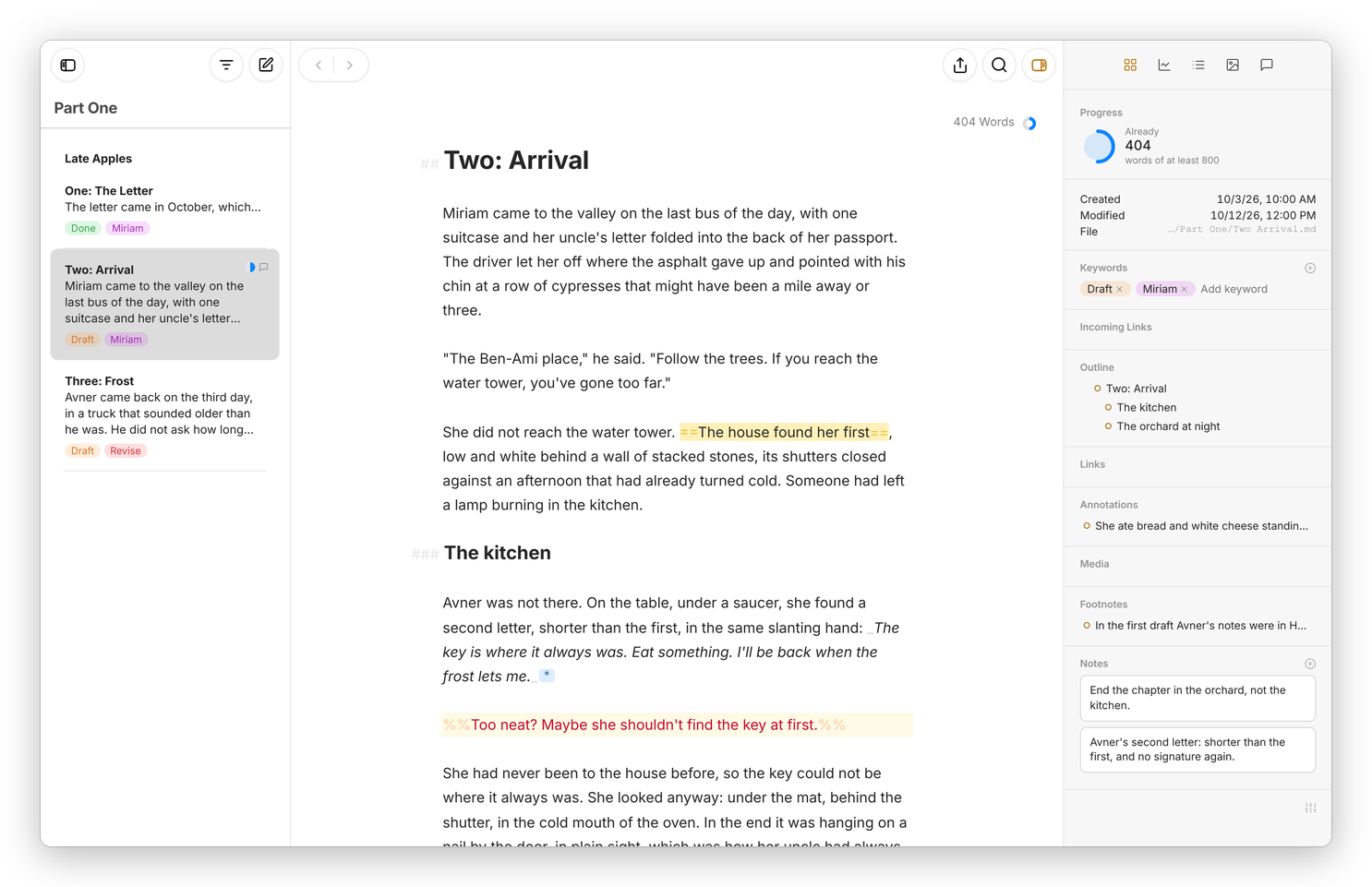 The Overview: the goal, the dates and file, keywords, the outline, annotations, footnotes and the sheet's notes.
- Overview, the first view. It shows the progress ring, or the counts when there's no goal; when the sheet was made and changed, and its file; its keywords, with a field to add one; the sheets that link to it; and lists of its headings, links, annotations, pictures and footnotes, each a click away in the text. At the bottom are the sheet's own notes. The sliders button at the bottom right chooses which sections show, and has Manage Keywords….
- Progress: every count for the sheet, or for the selected text, with the reading times, and the goal as a big ring.
- Outline: the headings, links, footnotes, annotations, comments, marked text, deletions and images, in order.
- Attachments: the pictures in the text.
- Annotations: Revision Mode, Check Text when the server has LanguageTool, and every annotation, comment, highlight, deletion and insertion, plus the sheet's notes. See Writing checks for Check Text.
On a phone the dashboard slides up from the bottom, and you close it by tapping the handle at its top.
The counter
The counter at the top right of the editor shows the sheet's words. Click it to count characters, sentences, paragraphs or pages instead, and select some text to count only that. Settings › General › Show Counter hides it, and View › Hide Counter does the same on the Mac.