The reader
Daf's reading view is where books, articles and PDFs open. Whatever I'm reading takes the whole window: the sidebar goes away (a swipe from the left edge or ⌘\ brings it back for a moment), and the bar on top is short and gets out of the way once I start reading. The contents and a side panel with Info, Notebook and Ask are there when I want them. This page covers books first, then what's different for articles and PDFs, then Listen, looking words up and the keys.
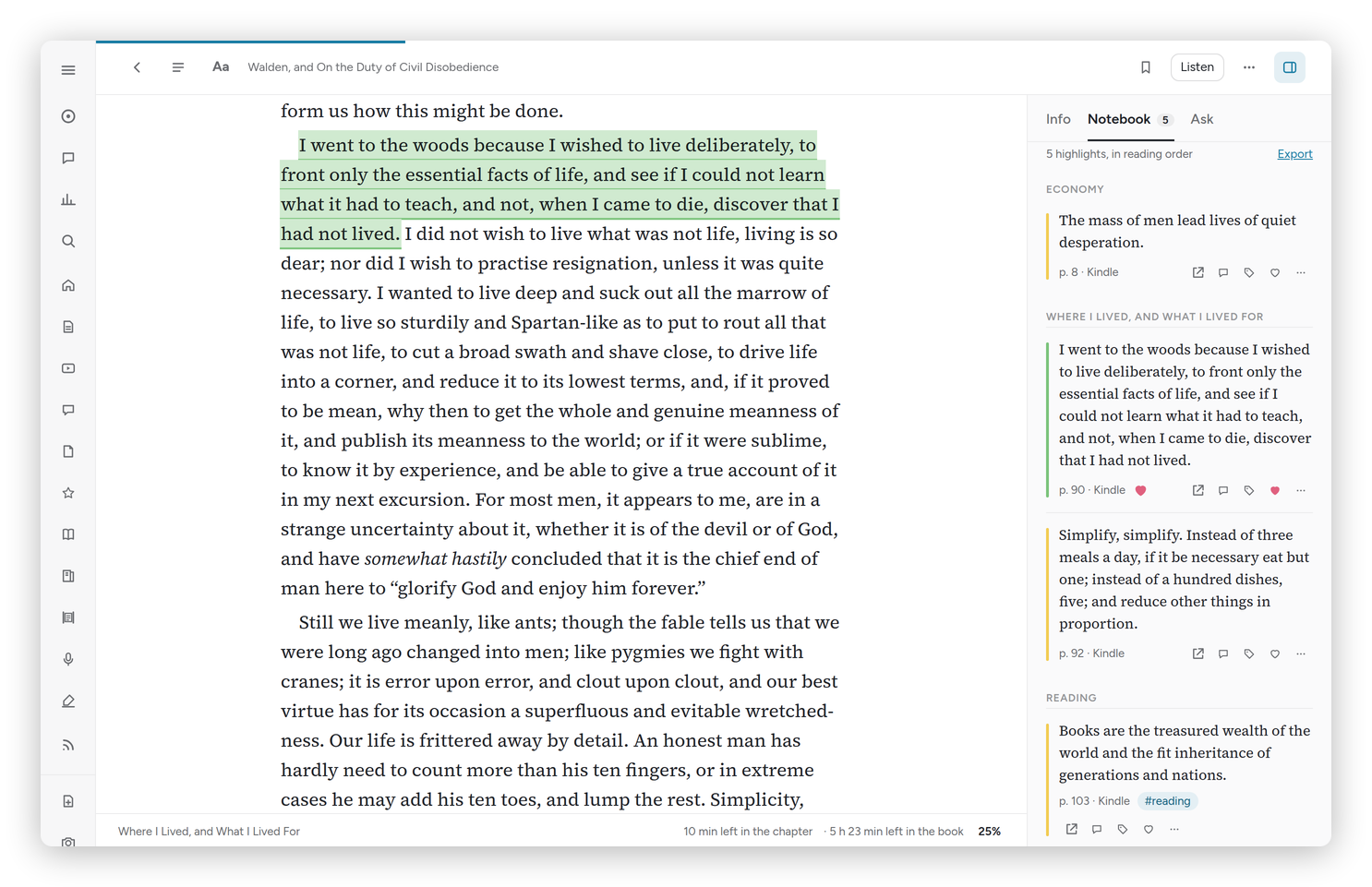 A book in Daf, with the Notebook open on the right.
Books
Every book in my Calibre library with an EPUB, KEPUB, AZW3, MOBI, FB2 or CBZ file opens in Daf. On a book's page press Read in Daf, or Continue in Daf with the percent once you've started. The reader is foliate-js, the engine inside the Foliate e-reader. A book Calibre only has as a PDF opens on its pages as printed instead, the way a PDF does (see PDFs), and it's still the book: my place, my highlights and my minutes go to the book, and it opens where I left it on any device.
Your place is kept per book on the server, so the phone and the desk agree, and the newest place wins when you open it ("Picked up at 45%"). If the Kindle is further along, Daf says "On the Kindle you're at page 212 of 480", with Go there and Stay here.
A book reads the way it does in Apple Books. On a wide screen it opens as two pages side by side, like a real book, and on a phone as one. The bar has back and the title, then Contents (t), Aa, Search (/), the bookmark ribbon (b) and the … menu, and it fades as soon as I turn a page. Moving the pointer to the top or the bottom brings it back. The contents and the side panel slide in over the pages and go again with a tap outside them. The footer has the minutes left in the chapter and in the book, the printed page when the EPUB knows it, and the percent. Tap the percent to jump anywhere.
On a phone the page is all there is: no bar, just the minutes left in the chapter at the bottom. One tap in the middle brings ✕ with the title and the author at the top, and at the bottom a slider to go anywhere in the book and a round button. That button opens one menu with Contents, Notebook, Search Book, Themes & Settings, Listen and Ask about this book, and under them the bookmark, focus mode and the full … menu. Tap the middle again and it's just the page.
Footnotes open in a small popover next to the link, so you never lose your place. The screen stays awake while a book is open. Near the end of a book in a series, Daf offers the next one (Start it), and at the very end it asks "The end. Mark it read on Hardcover?" with Finished and Not now.
The … menu has Listen from here (l), the Notebook (]), About this book, Ask about this book and Focus mode (f), then Go to the beginning, Go to the Kindle's page, Bookmark this page, Book page, notes and nightstand, Export highlights (Markdown), Download the file, Auto highlight, Keyboard shortcuts and Forget my place in Daf. In the Mac and Android apps it also has Keep on this device.
How the page looks
Aa opens Themes & Settings, the same for books and articles. On a phone it comes up from the bottom of the screen.
- The two A's make the text smaller or bigger, and a book has Pages or Scroll beside them. Pages is how a book opens unless I've picked Scroll on that device.
- Six looks to tap: Daf, Paper and E-ink for the day, Dusk, Night and Black for the night. A day look sets the theme Daf uses in light mode and a night look the one for dark mode, so with Auto the page still follows the system. All themes opens Preferences → Appearance for the other twelve.
- Auto, Light or Dark: when light and dark apply.
- Font opens the typefaces: 24 faces in groups, each shown in itself:
- Serif: Source Serif, Literata (the free cousin of Bookerly, made for Google's e-reader), Charis (Charter), Merriweather, Lora, EB Garamond, Crimson Pro, Newsreader, Spectral, Libre Baskerville, Alegreya, Vollkorn, IBM Plex Serif and Bitter.
- Sans: Figtree, Inter and Source Sans.
- Easier to read: Atkinson Hyperlegible, Lexend and OpenDyslexic.
- Hebrew: Frank Ruhl Libre, Noto Serif Hebrew, David Libre and Heebo.
- Yours: any font you've added.
- For books: the book's own.
They all come from Daf itself, so they work offline too. - Spacing, margins, justify: Font size, Line spacing, Line width (Narrow, Medium, Wide), and for books Justify the text.
Just for this book keeps a book's own typeface, size and layout, while the theme stays the same everywhere.
Whether the time counts toward your hour isn't shown over the text any more; Today and Stats say it.
Themes and your own fonts
Preferences → Appearance picks the colours for all of Daf:
- The themes: Daf, Paper (sepia), Nord, GitHub, GitHub dimmed, Cupertino, Solarized, Gruvbox, Catppuccin, Rosé Pine, Tokyo Night, One, Dracula, Everforest, E-ink, High contrast, Black (for OLED screens) and Absolute: pure black on white, or pure white on black, with no grey text or lines anywhere. Each one has a light and a dark version, and the card shows both. Choose Absolute for light, for dark, or both.
- Light or dark: Match the system (light by day, dark at night, as the device is set), Always light, or Always dark.
- A different theme for dark: for example GitHub by day and Nord at night.
- Your own fonts: add a TTF, OTF or WOFF file you have, such as Bookerly from a Kindle. Bookerly is Amazon's, so Daf can't ship it, but a copy you add stays on the server and your devices. It then appears under Yours in Aa, for articles and books alike.
The choice is kept on the server, so every device follows it.
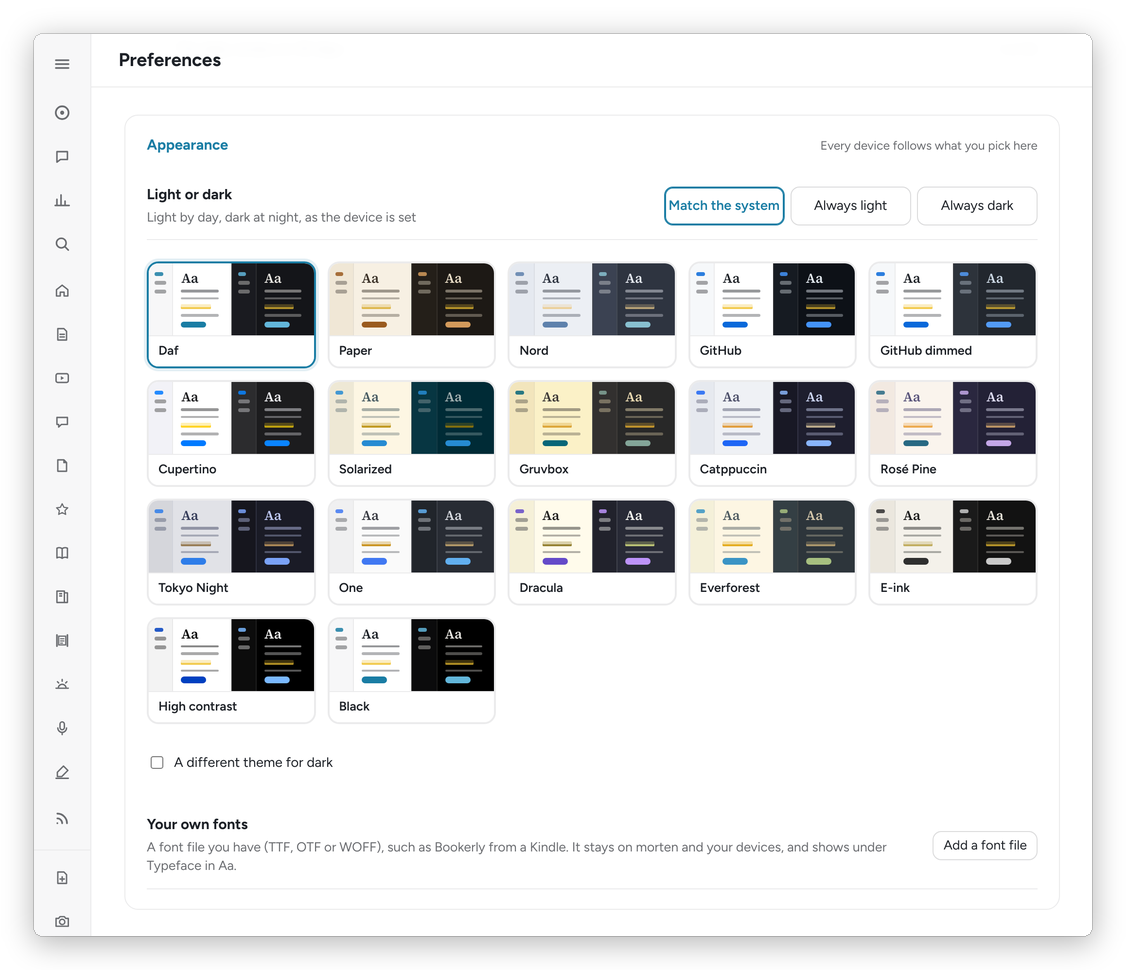 The themes, each card with its light half and its dark half.
The side panel
- Info: the cover, the description, and the details, including the series and where the Kindle is.
- Notebook: every highlight in the book, in reading order under chapter headings, from Daf, the Kindle, the audiobook and paper pages. Click one and the book goes there.
- Ask: a question about where you are, like a name you've forgotten or an argument you lost track of. Claude answers from the pages around you, briefly and without spoiling what comes later, on my own subscription. Ask has ready questions, like Summarize this in an article and Who is this? in a book.
Preferences → AI decides how all of this talks to the model: the ready questions, the prompt behind each thing (summaries, Ask in an article and in a book, a word in its sentence, flashcards), which model (Opus, Sonnet or Haiku), and whether new articles get a summary on their own. Each prompt starts as Daf's, and Daf's own puts it back.
Articles
Articles from the Feed and the Library open in the same view. Click a picture to highlight it: it gets a frame in the color, and it shows as the picture in the Notebook, Highlights, the review and the vault. Hebrew titles and paragraphs read right to left on their own.
The bar has six things on it: back, Aa, Listen (p), Done (e), the … menu and the notebook (]). A Feed item has Save to Library (s) too. It slides away while I read on, and comes back when I scroll up a little or move the pointer to the top, with the title in the middle once the heading has gone by. Under the text, quietly, is how many minutes are left.
The article … menu has the next and previous item of the list I came from (Shift J and Shift K), Shortlist (f), Focus mode (Shift F), Add a document note, Read aloud from here, Ask about this, Load the full article (for feeds that only send a summary), Send to the Kindle, Keep on this device (in the apps), Save to Library and Mark seen for a Feed item or Read later and Archive for a Library one, Reset reading progress, Edit title and author, Delete, Open the original, Copy the link, Open the note in Obsidian and Keyboard shortcuts.
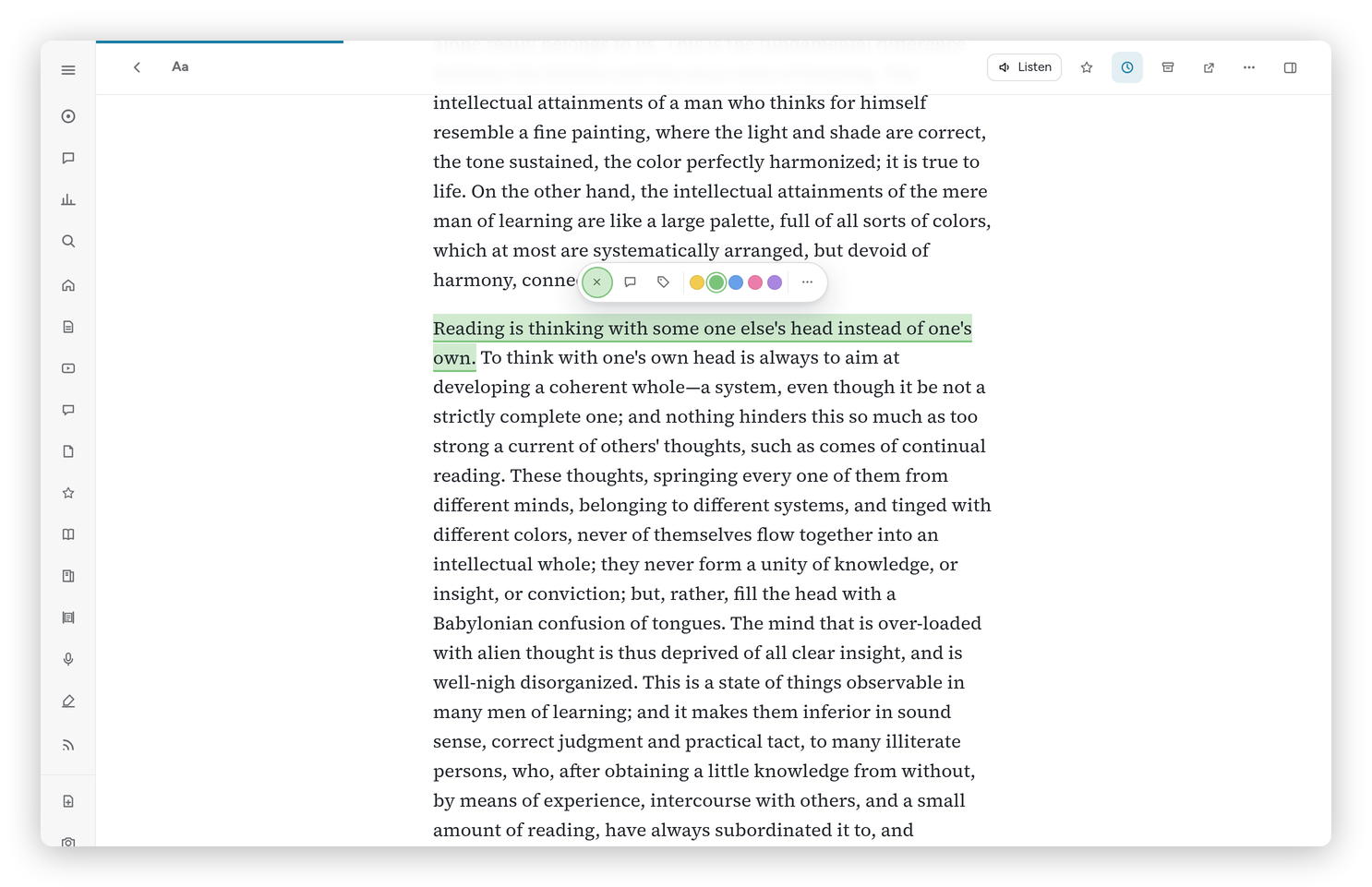 Selecting a sentence highlights it, and the bar above it changes the color, adds a note or tags it.
Writing with a pen
On a tablet with a pen (the S Pen on a Galaxy Tab, or an Apple Pencil on an iPad) you can write straight on an article or a book, the way you'd write in the margins of a paper one. The pen writes and your fingers scroll and select, so there's no mode to switch. It works in the Android app and in the browser. The pen's tools show on the right of the screen the first time the pen touches the page:
- The pen. Seven kinds, as in Samsung Notes: fountain pen, calligraphy pen, pen, pencil, calligraphy brush and marker. Tap the pen again for its kinds, its size (1 to 100), its opacity and its colour: the text's own colour (white on a dark theme), fifteen others, or any colour at all. Each kind keeps its own size, colour and opacity, and the line gets thicker the harder you press.
- Highlighter. Drawn along a line of text, it highlights those words, as selecting them does, so the highlight is in the Notebook, Highlights and the review like any other. Drawn down a few lines, it highlights from where you started to where you stopped. Anywhere else, like a ring around a paragraph or a stroke in the margin, it stays a highlighter's stroke. Its colour is your highlight colour.
- Eraser. Tap it again to choose whether it takes whole strokes or only what it passes over, and how big it is. It also takes away any highlight it passes over. Erase everything written here is there too, with Undo.
- Lasso. Draw round handwriting to hold it, then To text or Erase. Tap the lasso again for Read all the handwriting here.
- Undo and Redo.
- Margin (articles) moves the text over to leave room on the right for notes. It comes on by itself in an article that already has notes in its margin.
- › puts the tools away, and then the pen scrolls and selects like a finger. The pen button brings them back.
The S Pen's button. Press it and let go with the pen just over the screen, not touching, and the round menu opens where the pen is, as in Samsung Notes. The pen you're holding is in the middle (tap it for the other kinds, the highlighter and the eraser), its size is on the left, its colour on the right, Undo and Redo are at the top, and your favourite pens are at the bottom, with + to keep the pen you're holding as a favourite. Hold the button while you write and the pen erases.
Shapes. Draw a line, a circle, a rectangle or a triangle and hold the pen still for a moment at the end, and it comes out clean.
Handwriting into text. To text reads what the lasso holds, and a card shows it to fix:
- Note on the passage: the sentence beside your handwriting is highlighted (or the highlight that's already there is used) and the text becomes its note, so it's in the Notebook, Highlights, the review and the vault. The handwriting stays.
- Typed, in its place: the handwriting turns into typed text, where it was and about its size.
- Copy.
English is read on the device by Grape, the reader FineNotes uses, in Daf itself, so it works in the browser too and offline once its 5.7 MB model has come. Hebrew is read by Google's handwriting reader in the Android app (0.5.2 and later), which it fetches from Google once, about 20 MB; pick עברית on the card. Lines drawn clean as shapes and the highlighter's strokes aren't read.
While the pen is over the screen, a small ring shows where it'll write and how wide. A hand resting on the screen while you write doesn't scroll the page or turn it. What you write is kept on the server, so it's there on every device, and each stroke stays with the words it was written on: change the font size or the line width and it moves with them, and a note in the margin stays beside its paragraph. Written with no signal, it waits on the device and goes when you're back online, as highlights do. Writing on a Feed item saves it to the Library, as a highlight does.
Focus mode
Focus mode in the … menu of an article or a book (the [ ] button in a PDF's bar) puts it on the whole screen: the sidebar, the bar and the book's footer go, and in the Android app the status and navigation bars go too and the screen stays on. In a browser the window goes full screen. The edges bring back what you need:
- The top or bottom edge: the bar (and a book's footer), with Aa, the contents, the side panel and the rest. It goes again after a few seconds, or when you touch the page. In a book, a tap in the middle of the page does the same.
- The left edge: the contents.
- The right edge: the side panel, with Info, the Notebook and Ask.
Focus mode stays on for the next thing you open until you leave it from the … menu, Esc, or F (Shift F in an article). The pen's tools are hidden while you're in it; the S Pen's button still opens the round menu.
PDFs
A PDF opens as text first, which reads like an article and reflows on a phone. Pages opens it as printed, with pdf.js, drawn page by page with a text layer you can select and highlight. Zoom with + and −. Highlights made on the page show in the text view too when their words are there, and the other way around.
Listen
Listen reads the book or article aloud with Kokoro, a voice that runs on my server, a paragraph at a time, and marks the sentence it's on. Reading aloud counts toward today the whole time it plays. For articles the player has the previous and next paragraph and a speed button. For books it also follows across pages and chapters and has a Sleep timer from 15 to 60 minutes. The player's voice button (it shows the voice's name, Heart to start with) lists Kokoro's English voices, American and British, clearest first. Press ▶ next to one to hear a line in it, and press its name to switch; the paragraph starts again in the new voice. The voice and the default speed are also in Preferences → Reader.
Looking things up
Select a single word and the bar shows Define: Hebrew words come from Sefaria's dictionaries (BDB, Klein and Jastrow), English ones from Wiktionary. Select a Hebrew phrase and it shows Translate instead. "In this sentence" explains what the word means right there, which takes about ten seconds.
Keys
| Books | Articles | ||
|---|---|---|---|
| ← → | previous / next page | j / k | next / previous paragraph |
| Space | next page (Pages) | h | highlight the paragraph or selection |
| h | highlight the selection | n | highlight with a note |
| n | highlight with a note | l / e | Later / Done |
| b | bookmark this page | s | Save to Library (Feed) |
| t | contents | f | Shortlist |
| / | search in the book | o | open the original |
| ] | side panel | [ / ] | contents / side panel |
| l | listen | Shift L | read aloud |
| f | focus mode | Shift F | focus mode |
| Esc | close | Shift J / K | next / previous in the list |
| d / z | delete / undo | ||
| t | tags |
Everywhere: ⌘K searches everything, ? shows the keys for where you are, and holding Alt (⌥ on a Mac) while you select selects without highlighting.
Preferences → Keyboard changes any of them: click a shortcut and press the key you want, and every "Keyboard shortcuts" sheet follows. With a Hebrew keyboard on, the keys still work by where they are on the keyboard, so h is still the key under your finger.
Offline, and fast
Daf keeps itself on the device: its screens come from there at once, every list and page shows what it had a moment ago and then catches up, and a cover, a manga page or a book you've opened before comes from the device instead of the server. A book downloads the first time you open it and then never again, unless it changes in Calibre. When Daf itself is updated, an open page notices within half an hour and loads the new version at a calm moment: the next time you go somewhere outside a reader, or come back to Daf after a while away, and never while something is playing or half typed.
On an https address, every book and article you've opened before opens again with no signal, and opening the Library quietly saves the text of up to 30 Inbox and Later articles. What you do offline, your place, highlights, notes and bookmarks, waits on the device and goes to Daf when the network is back, with the time you did it.