Making a mix
This page is about the editor: the cassette and its label at the top, Side A and Side B under it, and the letter at the bottom. You get there with Make a mixtape on the start page, or Edit on one of your mixes, and everything you do saves by itself as you go.
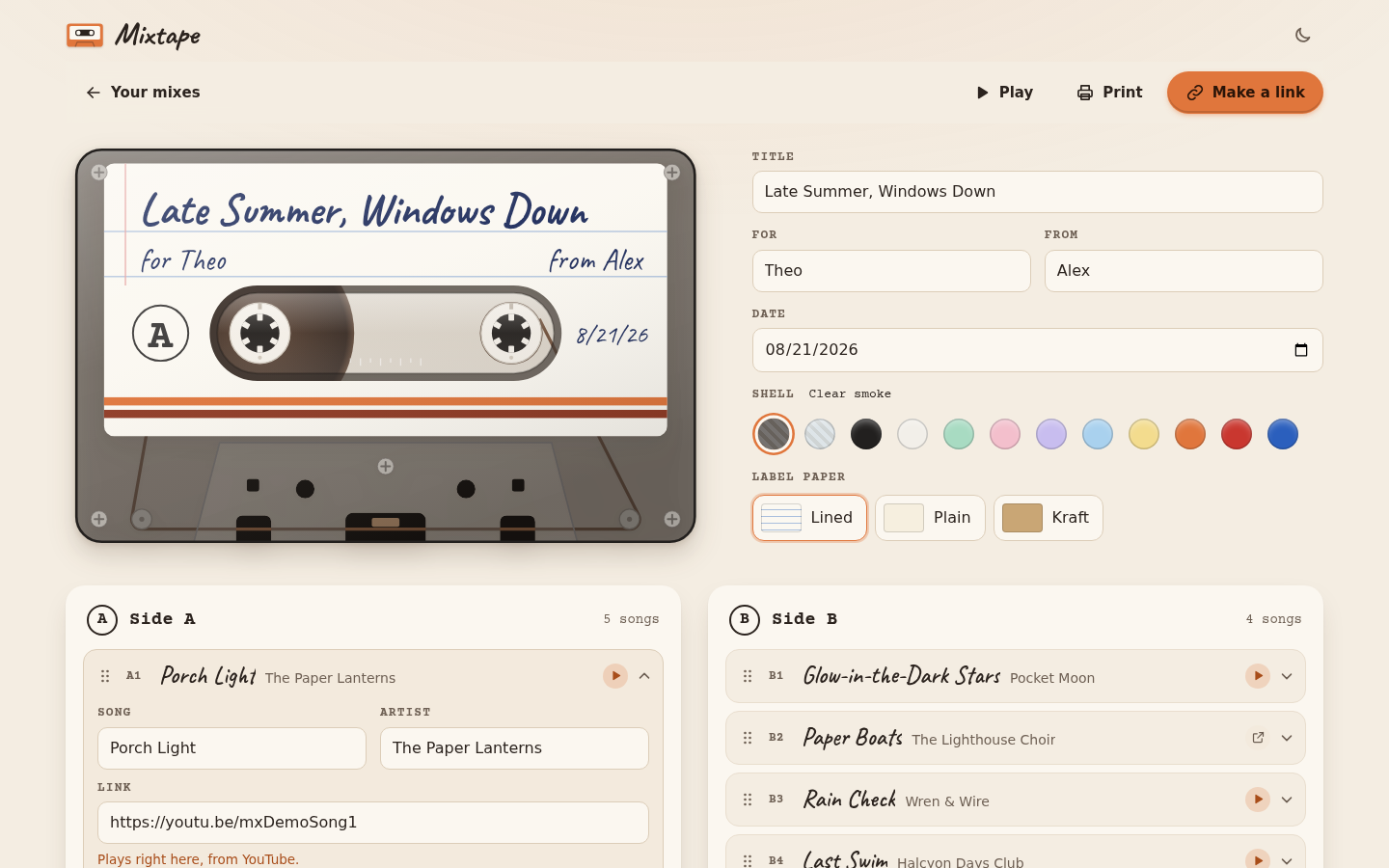 The top of the editor. What you type shows up on the label.
The label
The label has four things on it: Title, For, From and Date. As you type, they're written on the cassette's label in handwriting, the title on the top line, "for" and the name on the left of the second line and "from" and your name on the right. The date starts as today and shows next to the window. A long title gets smaller so it stays on the label, the way you'd squeeze the last words in by hand.
You can leave any of them empty. Without a "For", the person who gets it sees "A mixtape for you".
The shell and the paper
Shell is the color of the cassette itself. There are twelve: clear smoke and clear, where you can see the tape and the little rollers inside, then black and white, five pastels (mint, pink, lilac, sky and butter) and three bright ones (orange, red and blue). The name of the one you picked shows next to the word "Shell".
Label paper is lined (white with blue lines and a red margin, like a notebook), plain (cream) or kraft (brown paper). The paper you pick is also the paper of the letter and of the J-card, so the whole mix matches.
Adding songs
Under each side there's Add a song. It adds a row and opens it, with four boxes:
- Song and Artist, which go on the J-card.
- Link, where you paste the song's address.
- Note, a line or two about why this song is on the tape. It shows under the song while it plays.
Under the link, a short line tells you what the link will do. "Plays right here, from YouTube." means it plays in the page. That's any link from youtube.com, youtu.be or music.youtube.com. "Opens on Spotify in a new tab." (or Apple Music, Bandcamp, SoundCloud, or the name of whatever site it is) means the person gets an Open button for it. A song with no link is fine too, which is handy for a song that isn't online anywhere, and it still goes on the J-card.
Tap a song's row to close it, and tap it again to open it. A closed row shows the title, the artist and a small sign for the link: a play triangle for YouTube and an arrow out of a box for anything else. Each side takes up to 30 songs.
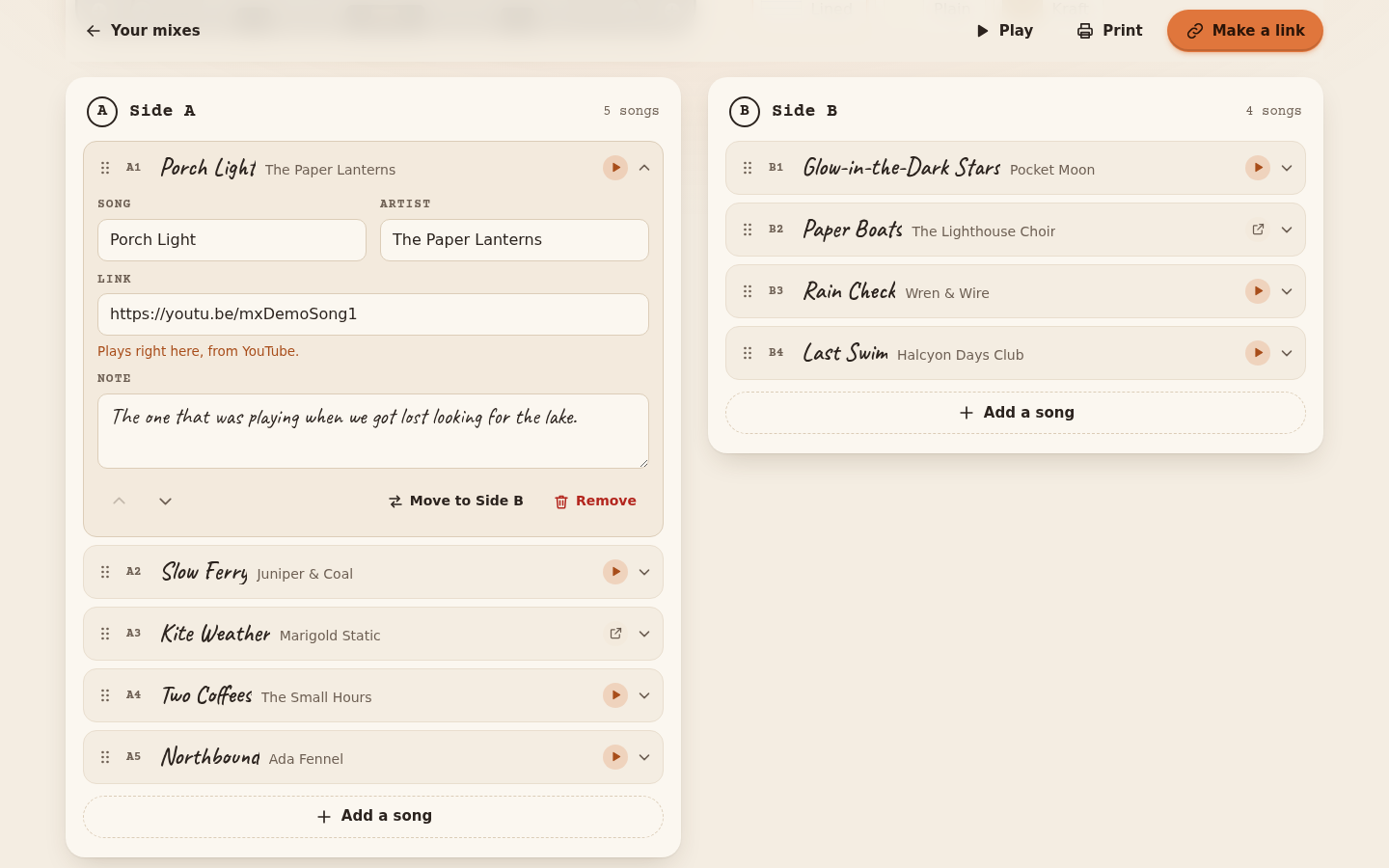 An open song, with what its link will do written under it.
Moving songs around
Every song has a handle on the left, the six dots. Drag it up or down to move the song, or across to the other side. It works with a finger and with a mouse, and the page scrolls by itself when you drag near the top or the bottom.
When a song is open, there are also small up and down arrows, which move it one place, and Move to Side B (or Move to Side A), which puts it at the end of the other side. With a keyboard, tab to a song's handle and use the up and down arrow keys to move it, and the right arrow to send it to Side B, or the left arrow to send it to Side A.
Remove takes a song off the tape. A message comes up at the bottom with Undo, which puts it back in the same place.
The letter
At the bottom is the letter, on a sheet of the same paper as the label. "It goes inside the case" because that's where it lives: the person who gets the mix finds it next to the J-card, and it prints with the J-card too. Write as much as you like. The number of characters shows on the right, and a very long letter makes a long link, which Sending it explains.
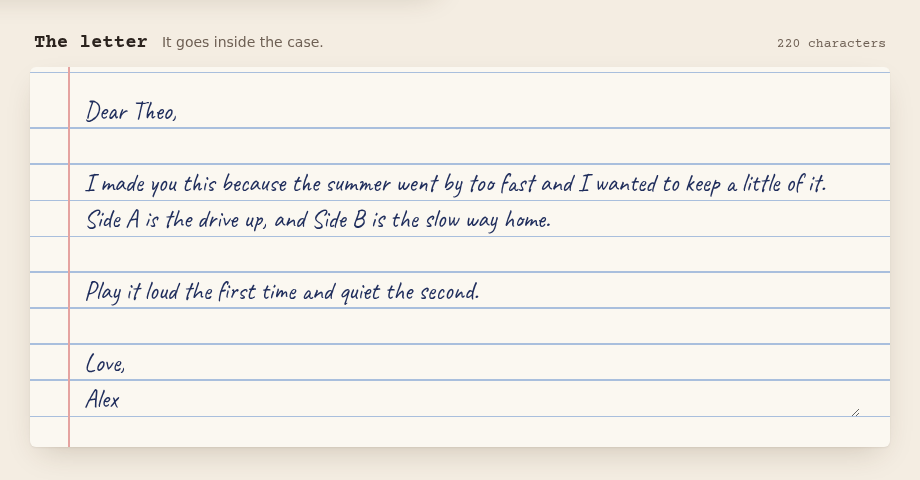 The letter, on the same paper as the label.
Saving and your mixes
There's no save button. While you type, the top of the editor says "Saving…" and then "Saved", and the mix is kept in your browser. If the browser isn't keeping anything (a private window, for example), it says "Only in this window" instead, so make a link before you close it.
The start page lists your mixes under "Your mixes", with the one you changed last at the front. Tap a cassette or Play to play it, Edit to change it, the two-squares button to make a copy (handy for a second mix that starts from the first), and the bin to delete it, with Undo for a few seconds after.
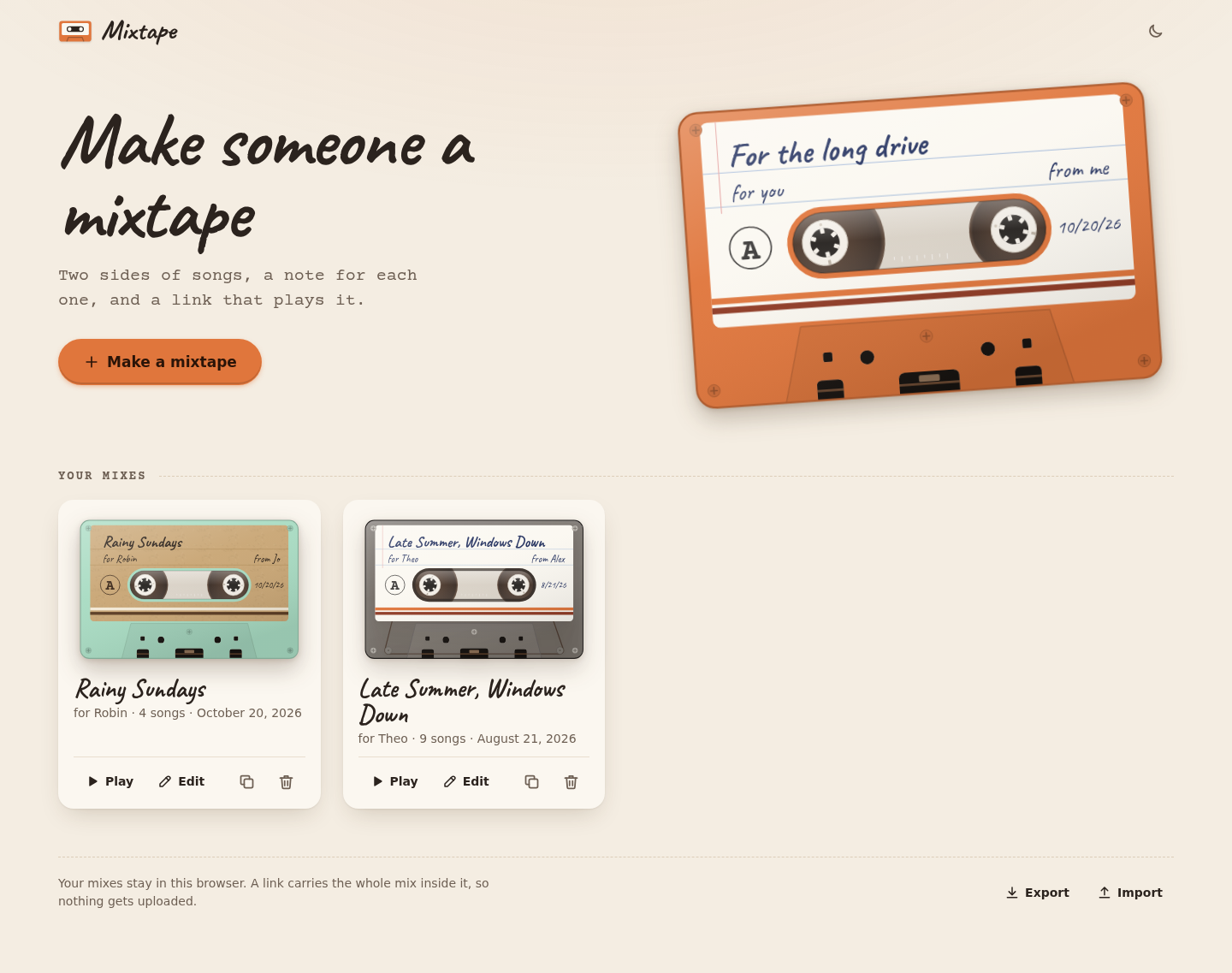 The start page, with your mixes.
Next step
When the mix is the way you want it, press Make a link. Sending it is about that link.