Writing a script
The scripts window
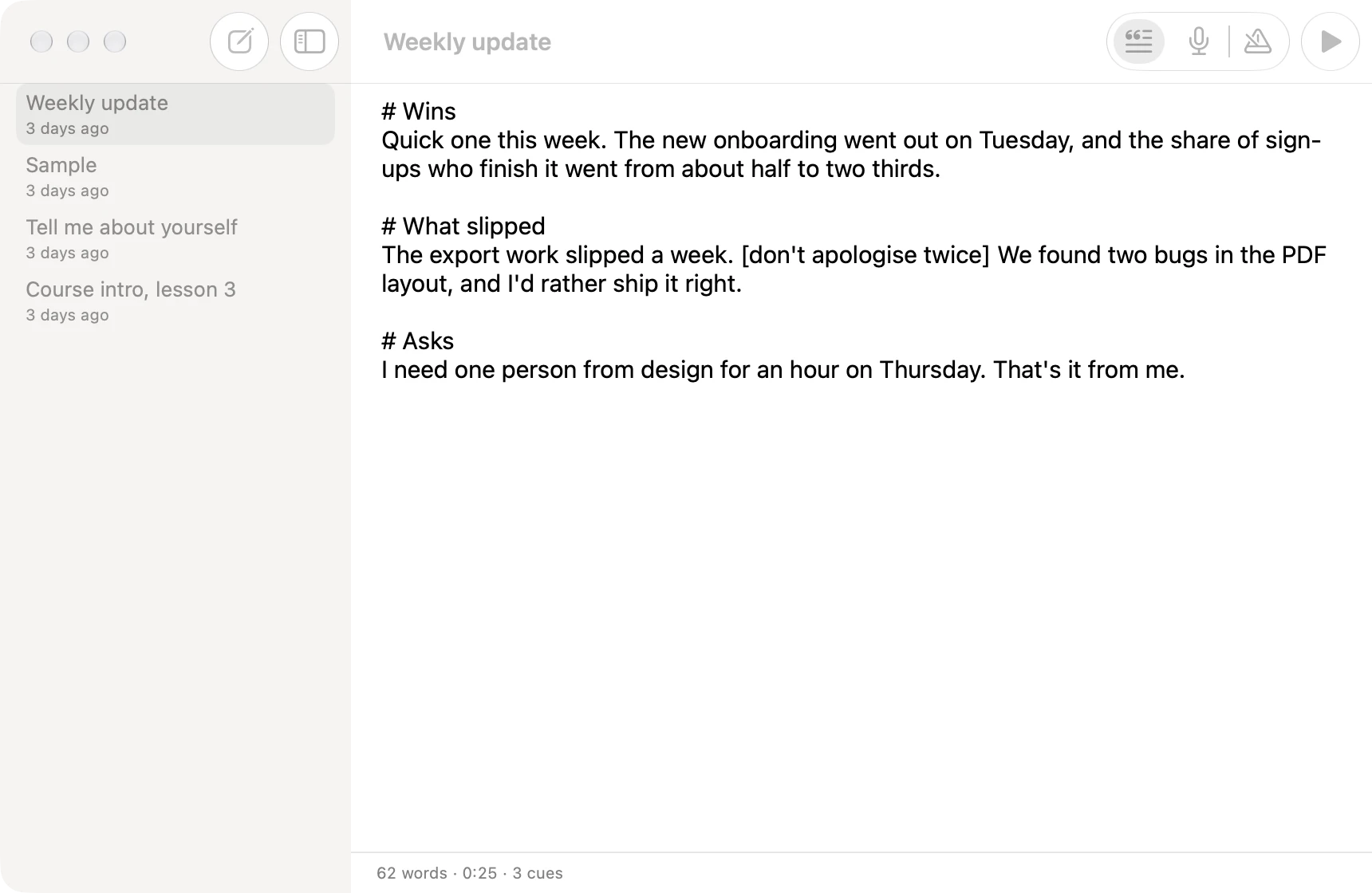
On the left are your scripts, newest first. On the right is the one you picked, as plain text. Under it, one line says how many words it has, about how long it takes to say (at 150 words a minute) and how many cues it has. It saves as you type.
The toolbar has New Script at the top left, then the mode (Follow, Voice or Steady) and Start (▶, or ⌘Return) on the right, which shows the script in the prompter. While it's showing, Start turns into Hide (■).
Right-click a script in the list for Show in Prompter, Rename…, Show in Finder and Move to Trash. A new script asks for its name first, and the name is the file's name.
What a script looks like
It's plain text, and three things have a meaning:
# Opening
Thanks for making the time. I want to walk you through
three things today, and then leave room for questions.

# Where we are
Last quarter we shipped the new reader. [pause]
But the first week is still where we lose most of them.
- A line starting with
#is a cue. It shows in the prompter as a small heading in capitals, it's where the jump buttons and the cue shortcuts take you, and it's never read aloud, so Follow skips it. One#or three makes no difference. - Anything in
[square brackets]is a note to yourself, like[pause]or[show the chart]. It shows dim and in italics, and Follow skips it too. - A blank line starts a new paragraph. Lines right under each other run together into one paragraph, so you can break lines wherever you like while you write.
Everything else is what you say.
Where the files live
In ~/Library/Application Support/Prompter/Scripts, one file per script. They're ordinary .md files, so any
editor opens them, and Show in Finder takes you there. Files you add there yourself (.md, .txt or
.markdown) show up the next time you switch to Prompter. You can also drag a file onto the scripts window to copy
it in.
Changing a script while it's showing
Go ahead. The prompter updates as you type and keeps your place.