Quick Find
"Quick Find" is how you get anywhere in Dvarim by typing: a list, a project, an area, a tag, or a single to-do buried in a project you haven't opened in weeks. It's one box, and it searches as you type.
Opening it
The quickest way is to just start typing. When you are not already typing in a field, any letter you press opens Quick Find with that letter already in it. You can also press ⌘F (or ⇧⌘F), or click the magnifier at the bottom of the window. On a phone, pull the list down from the top until the magnifier turns blue and let go, or tap the round button at the top right.
What it finds
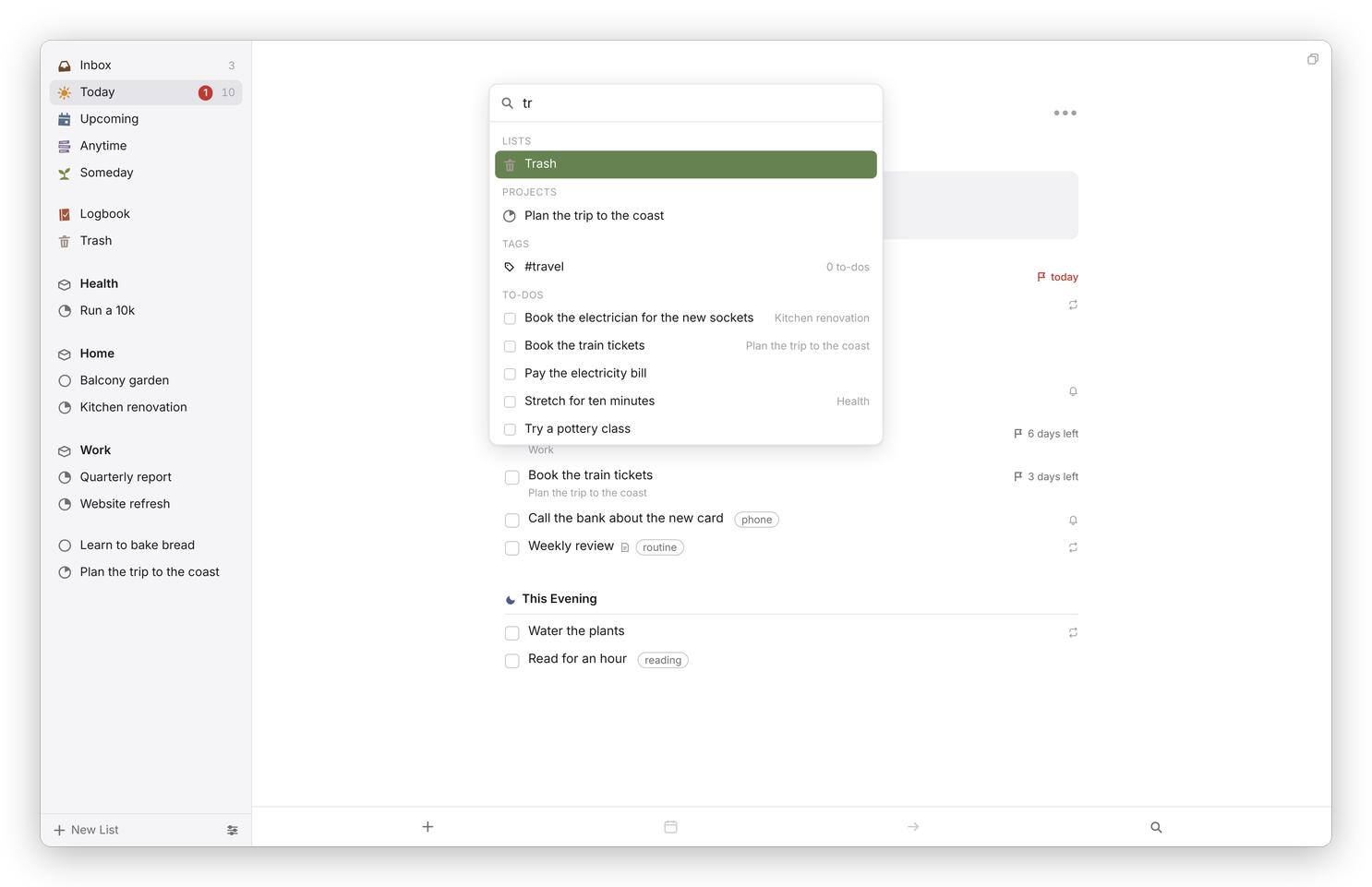 Two letters are usually enough. Each to-do shows where it lives on the right.
Before you type anything, Quick Find lists the built-in lists, your open projects and your areas, so it doubles as a way to jump around. Once you type, the results come in groups:
- Lists: Inbox, Today, Upcoming, Anytime, Someday, Logbook and Trash, by name. Typing "settings" offers Settings too.
- Projects, including ones you've completed or canceled, so an old project is never more than a few letters away.
- Areas.
- Tags, each with how many to-dos have it. Choosing a tag opens Anytime filtered to that tag.
- To-dos whose title or notes contain what you typed, open ones first, then completed ones, up to twenty. The project or area each one belongs to is shown on the right, and choosing one takes you to its list with that to-do picked out.
Start with # to search only tags. The search ignores case, and it matches anywhere in a word, so "port" finds "Quarterly report".
Moving around in it
↑ and ↓ move through the results, Return opens the highlighted one, and Esc closes Quick Find without going anywhere. Clicking a result works too.
Filtering a list instead
If you want to narrow the list you're already in rather than jump somewhere else, use the tags under the title of Today, Upcoming, Anytime or a project: click one to see only the to-dos that have it, and All to see everything again.