Areas, projects and headings
Areas and projects are how Dvarim holds anything bigger than a single to-do. An "area" is a part of your life that never ends, like Home, Work or Health. A "project" is something that does end, like a kitchen renovation or a trip, and it can sit inside an area or on its own. Inside a project, "headings" break a long list into stages. In your files, an area is a folder, a project is a Markdown file, and a heading is a ## line in that file.
Making them
New List at the bottom of the sidebar offers New Project and New Area. ⌥⌘N makes a new project too, inside the area you're looking at. A new project opens with its name ready to type, and so does a new area.
If a to-do turns out to have more than one step, you don't have to start over: select it and press ⇧⌘P, or right-click it and choose Convert to Project. The to-do's title becomes the project's name, its notes become the project's notes, its When, deadline and tags come along, and each checklist item becomes a to-do of its own. The new project lands in the same area the to-do was in.
A project
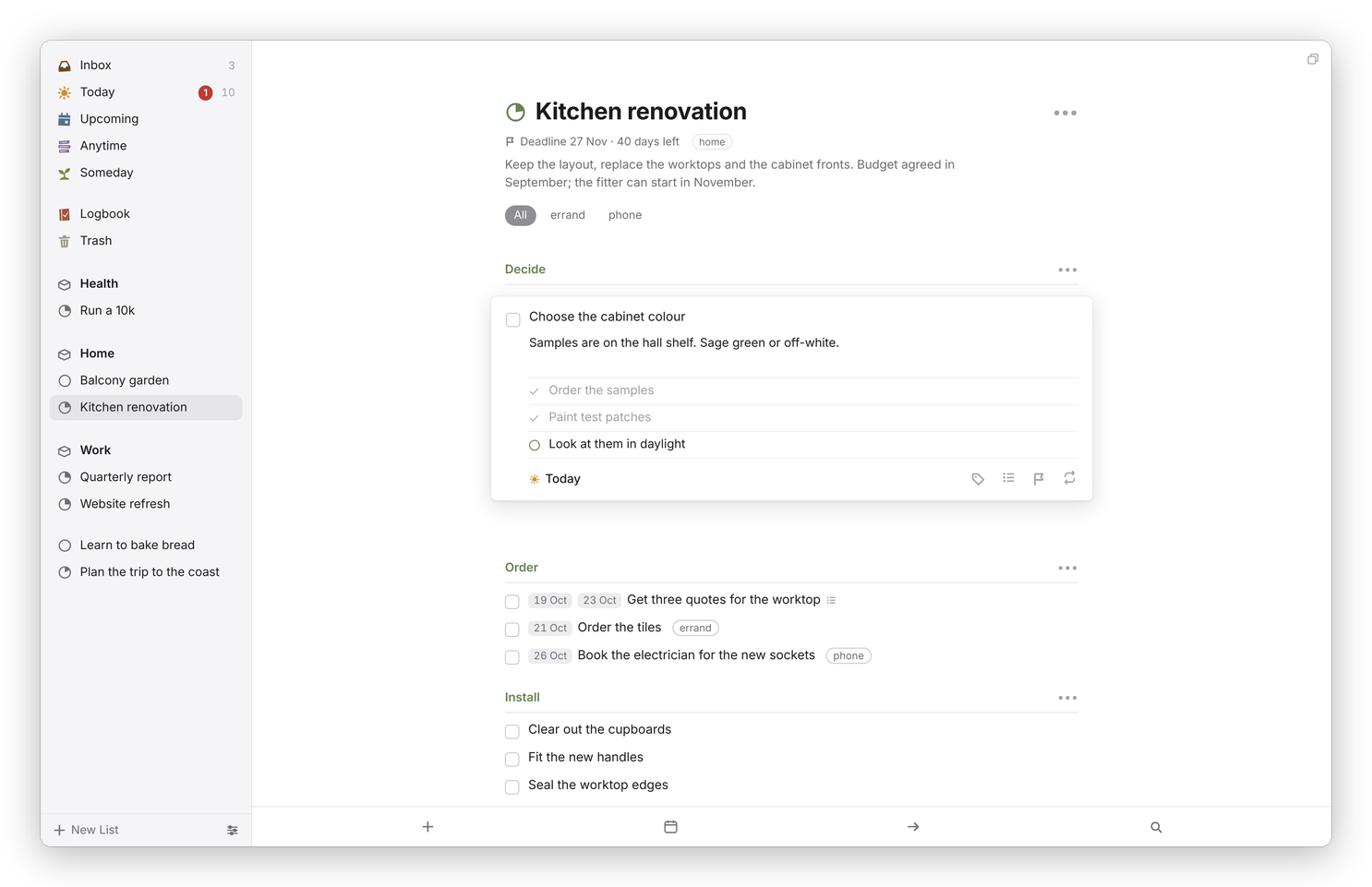 A project with three headings. Its pie fills as to-dos are done, and its deadline counts down under the name.
At the top of a project are its name, its deadline and tags if it has them, and its notes, which you can click and type into like any note. Below that come its to-dos, the loose ones first and then each heading with its own. The pie beside the name, and in the sidebar, is how much of the project is done. Completed to-dos leave the list, and Show N completed items at the bottom brings them back into view.
The ••• button at the top right is the project's menu:
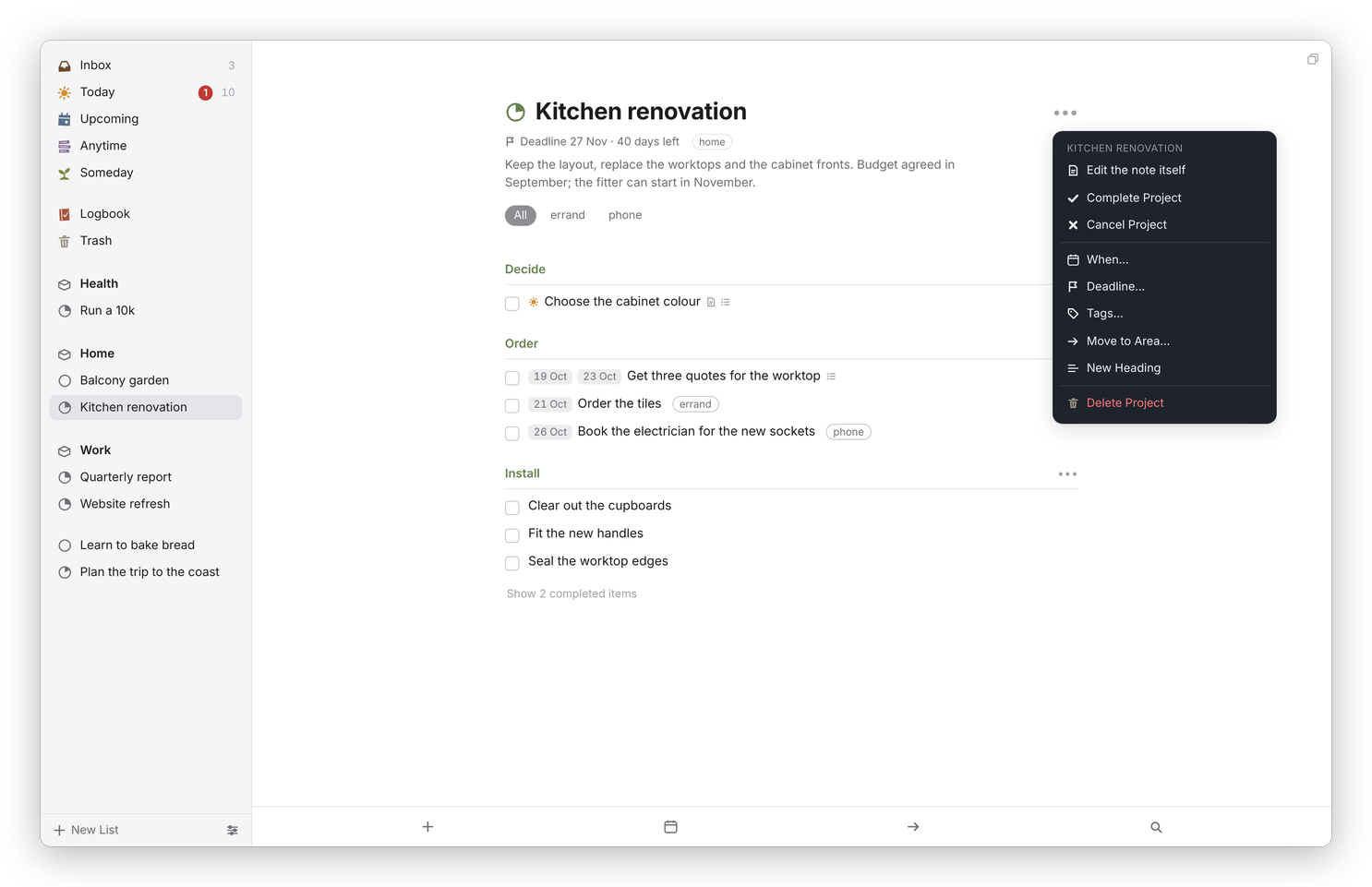 Everything you can do to a project, in one menu.
- Edit the note itself opens the project's actual Markdown file inside the app. See Your to-dos as Markdown.
- Complete Project marks it done. If some of its to-dos are still open, Dvarim asks first: Complete them too, or Leave them open.
- Cancel Project marks it canceled. Either way it moves to the Logbook, and the file stays where it is.
- When… and Deadline… work as they do for a to-do. A project whose When arrives shows up at the top of Today, and one in Someday is listed in the Someday list.
- Tags… tags the whole project.
- Move to Area… moves it into another area, or to No Area.
- New Heading adds a heading, named and ready for you to type over, and so does ⇧⌘N.
- Delete Project asks, then moves the project and its to-dos to the Trash, where you can restore it until you empty it.
If you've told the server where your Obsidian vault is, there's an Open in Obsidian item at the top as well.
Headings
A heading groups the to-dos under it, and its own ••• menu, at the right of the heading's line, has New To-Do (which adds one under that heading), Rename, Archive Heading and Delete Heading. Archiving is for a stage that's finished: it completes the open to-dos under the heading and files the heading away with them, and Unarchive Heading brings it back. Deleting a heading keeps its to-dos in the project.
On a phone, you can make a heading with the green plus: hold it, carry it to the left margin of the project where you want the heading, and let go when the line says NEW HEADING.
An area
An area's page lists its projects first and then the to-dos that belong to the area itself, outside any project. Its ••• menu has Edit the note itself, New Project, New To-Do, Tags… and Delete Area. Deleting an area keeps everything that was in it: its projects move out to stand on their own, and its loose to-dos move to Anytime.
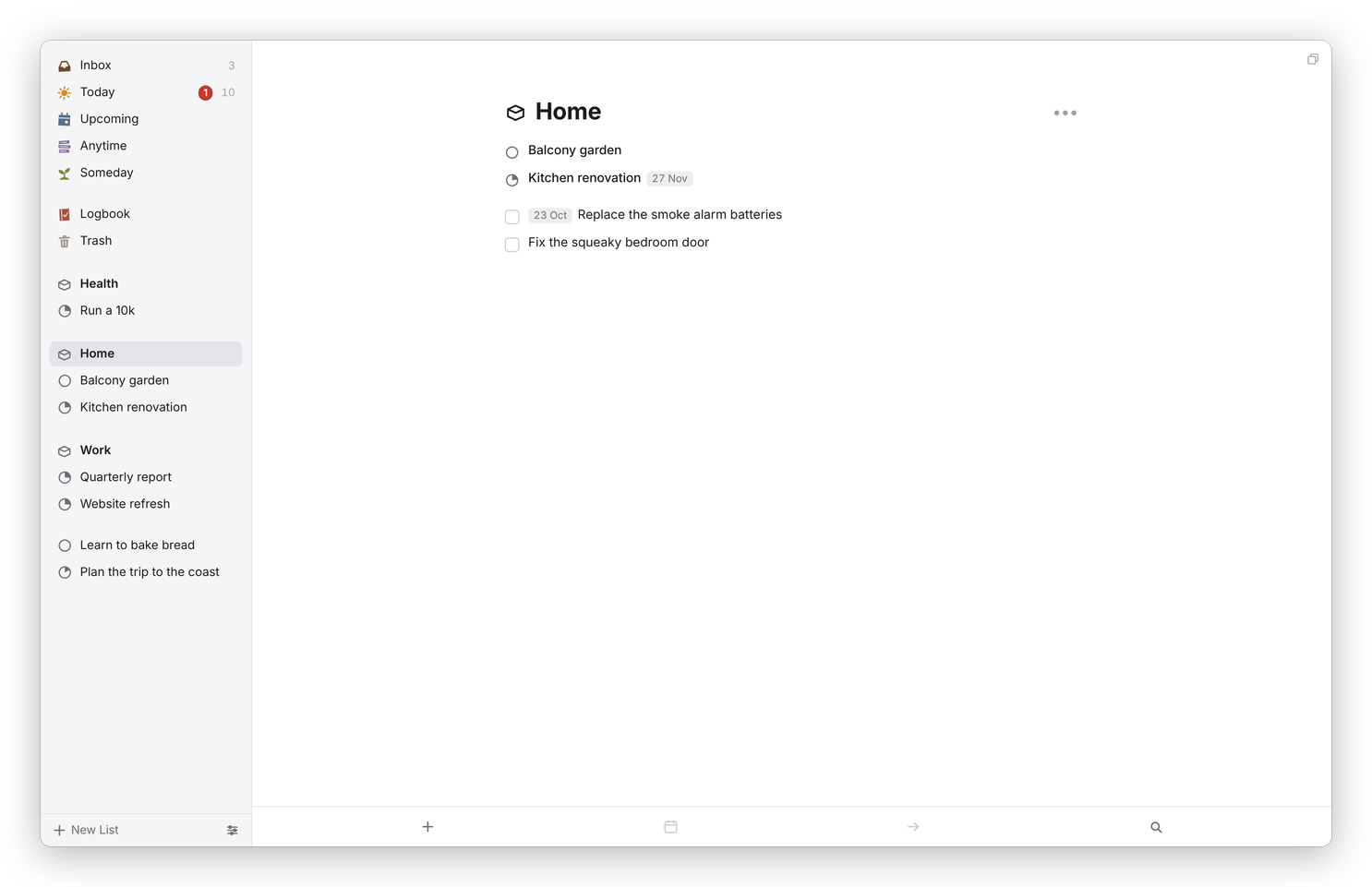 An area holds projects and loose to-dos. Its notes and tags live in a note of its own, inside its folder.
Moving things around
Drag a to-do onto a project or area in the sidebar to move it there, or select it and press ⇧⌘M for the Move popover, where you can type to find a project, an area or a heading.