Install and devices
Binah is a web app first, so installing it mostly means opening your copy's address and signing in. This page walks you through that, then through building the Mac and Android apps, which are native and add a few things a web page can't do. You need a Binah server running first. If you don't have one yet, Your own server is the place to start.
My own copy is at https://binah.tiresia.xyz, behind a login, so it's only useful to me. Everything below assumes your own address. If you only want a taste first, one game runs in your browser with no server at all: see Try one game first.
On the web
Open your copy's address in any browser and sign in with the username and password that were set on the server (python -m binah.cli set-password). You stay signed in on that browser for a year, unless the password changes, which signs out every browser at once.
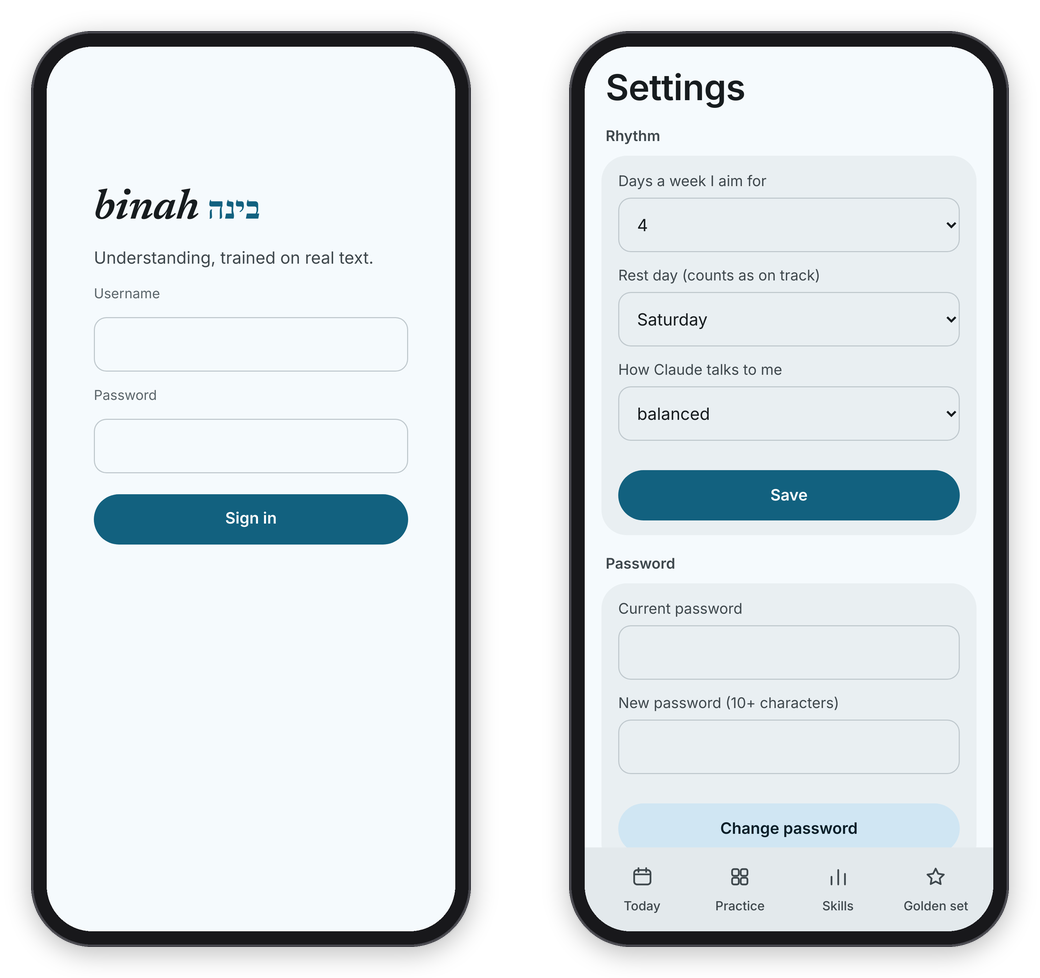 Sign in once per browser. Settings is where the weekly goal, the rest day and the grading tone live. On a phone it's the button at the top right of Today, and on a computer it's in the sidebar.
On a phone, install it so it opens like an app. In Safari press the share button and then Add to Home Screen, and in Chrome open the menu and press Install app (or Add to Home screen). It then opens full screen, without the browser's bars.
Two things need https (or localhost): recording your voice for Just a Minute and the benchmark talk, and the pages Binah keeps so it opens without a connection (the games themselves always need the server). On a plain http:// address on your home network you can play everything else.
The Mac app
The Mac app is native, written in SwiftUI with no web page inside. It talks to your server's JSON API (API.md) with a device token. It has a sidebar, the games with an inspector beside the passage, today's edition in the menu bar, Train on This from any app, and the microphone for spoken answers. You need macOS 26 or newer. The easy way is Homebrew, which installs it and keeps it up to date:
brew install --cask franz-rosenzweig/tap/binah
brew upgrade                                 # later: takes each new version
The app isn't notarized by Apple, so the cask clears the quarantine flag on install, the way right-clicking and choosing Open would. Release builds are signed with the same certificate every time, so macOS keeps Binah's Keychain and microphone permissions from one version to the next. Every version is also on the Releases page as a zip.
To build it yourself instead, you need Xcode too (the build uses its actool to compile the icon):
cd mac
./build.sh                                   # makes build/Binah.app
ditto build/Binah.app /Applications/Binah.app && open /Applications/Binah.app
The build signs with your Apple Development identity if your keychain has one (a free personal team in Xcode is enough), and ad hoc otherwise. With an ad hoc signature, the Keychain and the microphone ask again after each new build, because the signature changed. No team or identity is written into the repository.
The app opens my copy by default, so first open Binah → Settings… (⌘,), go to This Mac, put your own address under Binah's address, and press Use. Then sign in once in the window with your username and password. The app swaps that sign-in for a device token of its own, kept in your Keychain, and Settings → Connected devices lists it as mac.
What you get:
- The window. A sidebar with Today, Practice and Skills, then the Golden Set and the Benchmark, with today's count and the week at its foot. A game opens on top of its room. Subtext, the Weak Step, the Author's Word and Technique put the passage on the left and your answer in an inspector on the right. Passages are set in New York.
- The menus. Go has Today ⌘1, Practice ⌘2, Skills ⌘3, Golden Set ⌘4, Benchmark ⌘5, Back ⌘[ and Reload ⌘R. Binah → Settings… (⌘,) has your rhythm and Claude's tone, your password and Sign Out, and this Mac's address and menu bar.
- Today in the menu bar:
1/3, or3/3 ✓once the edition is done. Click it for the edition, Practice and Train on This. You can turn it off under Settings → This Mac. - Train on This. File → Train on This… (⇧⌘T) takes a link or a passage, and offers what's on the clipboard. With text selected in any app, Services → Train on This in Binah sends it. The Services item appears once Binah has run from Applications. For now Binah only keeps what you send, and the nightly run doesn't turn it into items yet.
- Just a Minute and the benchmark talk are recorded by the app itself and sent to the server. macOS asks once for the microphone, and the Mac stays awake while you speak.
binah://go/<room>links open a room, for Shortcuts:binah://go/practice, orbinah://go/settings.
The details, and the self-test that checks all of this against a sandbox, are in mac/README.md.
The Android app
The Android app is native too, written in Kotlin with Jetpack Compose (Material 3), with no web page inside. It talks to your server's JSON API with a device token, and adds a home-screen widget, Train on this in the share sheet, and the microphone for spoken answers. The signed APK of every version is on the Releases page. The easy way to install it and stay up to date is Obtainium: Add app, paste https://github.com/franz-rosenzweig/binah, and it installs Binah and offers each new version as it comes out. Every release is signed with the same key, so each one installs over the last.
To build it from the repository instead, you need JDK 17 and the Android SDK (platform 36), and the scripts are written for a Mac's shell (zsh), though Gradle itself runs anywhere.
cd android
./gradlew assembleDebug                       # a test build, "Binah dev", beside the real app
./release.sh                                  # the signed release, android/Binah-0.2.0.apk
adb install -r Binah-0.2.0.apk
release.sh needs a signing key of your own. Put a keystore.properties in android/ with storeFile, storePassword, keyAlias and keyPassword (git ignores it, and any *.keystore and *.apk), or pass the path to one: ./release.sh /path/to/keystore.properties.
It opens my copy by default, so on the sign-in screen press Another address…, put your own address in and press Use, then sign in with your username and password. The app swaps that sign-in for a device token of its own, kept encrypted on the phone, and Settings → Connected devices lists it as android-<model>.
What you get:
- The app. Today, Practice, Skills and the Golden set in a bottom bar. Games, the benchmark and Settings open on top, with Back. Passages are set in the phone's serif.
- The widget, 2×2 or 4×2: a ring of today's games with the count, and on the wide one the next game, the minutes left and the week. Tap it for Today. If Binah can't be reached, it keeps the last numbers, dimmed.
- Train on this in any app's share sheet: a link, or a passage of 20 words or more. A card at the bottom says what Binah answered.
- Long-press the icon for Today, Practice, Skills and Settings.
- The microphone for Just a Minute and the benchmark talk. Android asks the first time, and Settings → Microphone asks again if you said no.
binah://go/<room>links open a room, for Shortcuts and the like:binah://go/practice.
More in android/README.md, including the self-test that runs on a plugged-in phone against a sandbox.
Devices and their tokens
The widget, the menu bar and Train on this don't use your browser's sign-in. Each device gets its own token instead, which the server stores only as a hash, and posting the same device name again replaces its old token. Changing your password signs out every browser but leaves device tokens alone, so if you lose a phone, disconnect it under Settings → Connected devices, which lists every app with when it connected and when it was last seen (or use DELETE /api/devices/<name>, see API.md).
If you get stuck on any of this, feel free to open an issue with what you tried and what happened.