What is Peel?
Peel is a web page that turns a photo into a sticker, which means the main thing in the photo cut out, with a white border around it like a real die-cut sticker, saved as a PNG with a see-through background. It runs in the browser on an iPad, a phone or a computer, and the cutting out happens on that device, so your photos never get uploaded.
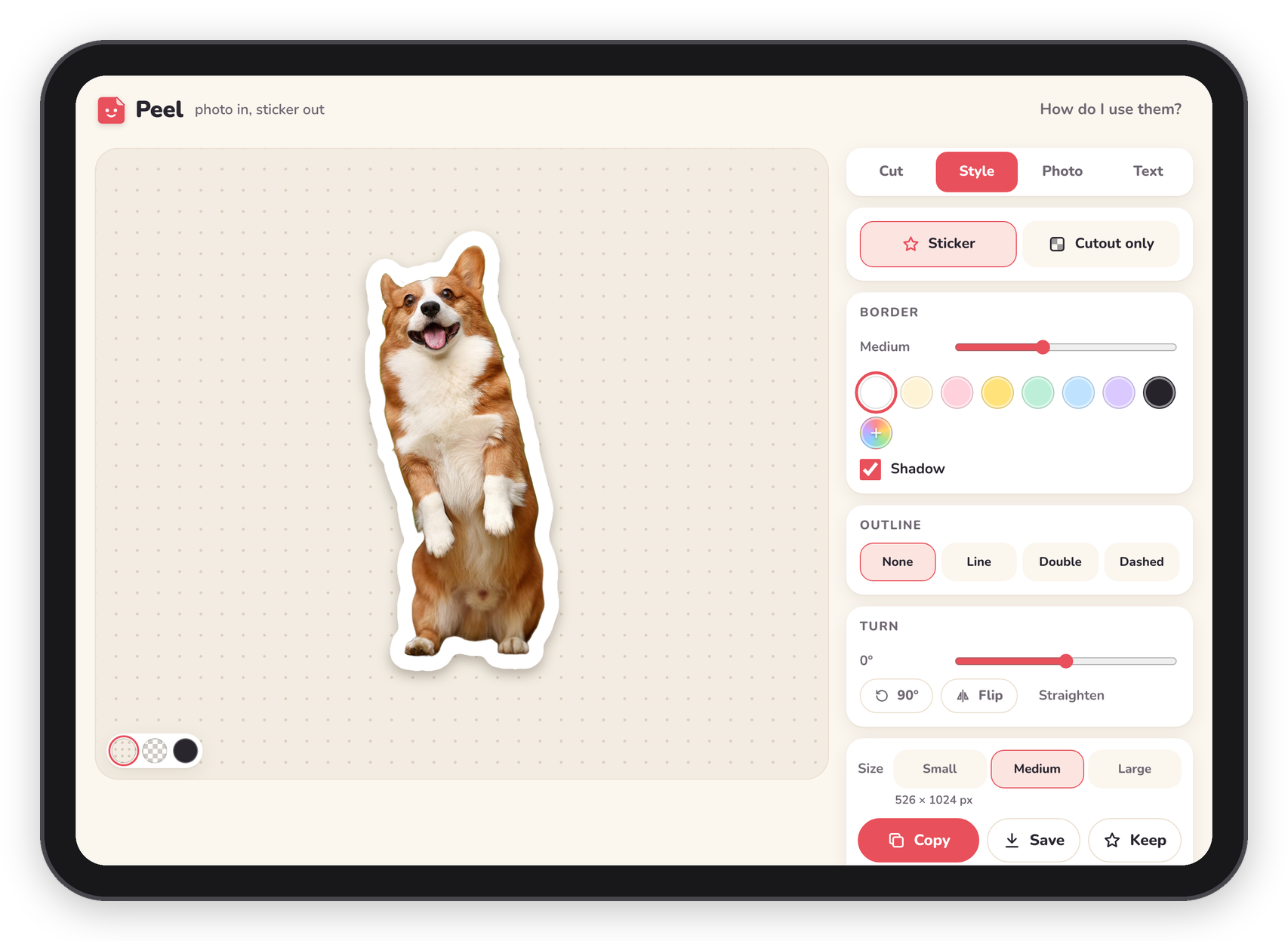 The editor on an iPad: the sticker on the left, the tabs on the right.
What it does
You pick a photo and Peel finds the main thing in it, cuts it out and puts a border around it. That takes a few seconds. If it picked the wrong thing, you drag a box around the right one and it cuts again from just that part. If the edge isn't quite right, there are brushes, a magic wand and a few edge tools to fix it.
Then you dress it up the way you like: a thicker or thinner border in any colour, an outline, a shadow, a photo look, or a few words in one of six fonts. When it looks right, you tap Copy and paste it into GoodNotes, or Save it to your photos or files. Everything you copy, save or keep also lands in "My stickers" on the same page, so you can grab it again later or lay a whole set out on one sticker sheet.
Basically, instead of a background remover, a photo editor and a sticker app, you only have one page to open.
Who it's for
I made Peel with GoodNotes in mind, for anyone who keeps notes, a journal or a planner on an iPad and wants stickers of their OWN photos: the dog, a plant on the windowsill, a mug, a concert ticket. The stickers are ordinary PNG pictures, so they work just as well in Notability, Freeform, Procreate, Messages or anything else that takes a picture.
Where it works
Peel is one web page, so it's the same everywhere. The differences come from the device:
| iPad and iPhone | Android phone or tablet | Computer | |
|---|---|---|---|
| Making and fixing stickers | Yes, with touch, pinch to zoom and two fingers to move around | Yes, the same | Yes, with the mouse, ctrl+scroll (or a trackpad pinch) to zoom |
| Save | Opens the share sheet (Save Image, Save to Files and so on) | Opens the share sheet | Downloads the PNG, or a zip when there are several |
| Copy | Puts the PNG on the clipboard, for pasting into GoodNotes | Where the browser lets a page copy pictures | In most browsers, or press ⌘C / Ctrl+C |
| Paste | The Paste button, which asks to read the clipboard | The Paste button | The Paste button, ⌘V / Ctrl+V, or drop files on the page |
| On the Home Screen | Safari: Share → Add to Home Screen | The browser menu | Some browsers offer to install it; a bookmark does the same |
The cutter runs on the graphics chip (WebGPU) when the browser has it, and on the processor (WebAssembly) when it doesn't, which is slower but gives exactly the same result. If the graphics chip fails or gives back nonsense, Peel switches to the processor on its own.
I've checked Peel in Chrome on a computer and at iPad and phone screen sizes, which is also how the screenshots in these pages were made. If something on your device doesn't work the way these pages say, please open an issue.
What stays on your device
The only things Peel downloads are its own files: the page, its fonts, the engine that runs the cutter (ONNX Runtime Web, about 28 MB) and the cutter itself (IS-Net, about 90 MB), all from the same place as the page and all the first time. There's no account, no sign-in and nothing that talks to anyone else.
What you make is kept in your browser, in three places:
- My stickers and your recent photos are in the browser's storage for the page (IndexedDB). Each kept sticker also keeps what it takes to open it again: the photo as it was cut, the cutout and the settings.
- The cutter is saved in the browser's Cache Storage after the first download, which means it doesn't download again next time.
- Your settings (the border, the outline, the size, the preview background, the brush and the wand) are in local storage, so the next sticker starts the way you left the last one.
This also means stickers don't move between devices by themselves. A sticker kept on the iPad isn't on your computer, and clearing the site's data in the browser's settings deletes them. In a private window, or anywhere the browser won't keep storage, Peel still works, and what you keep lasts until the window is closed.
Next step
If you want to try it, start with Install, which is mostly about the first download. If you've already opened it, go straight to Making a sticker.