The Codex and wiki pages
The Codex is where you look things up, and a wiki page is what you get when you do. The idea is that you never have to wonder where to look: rules, monsters, spells, items, classes, years of expert answers, homebrew, worldbuilding advice and your own books are all searched at once, and every result says which shelf it came from.
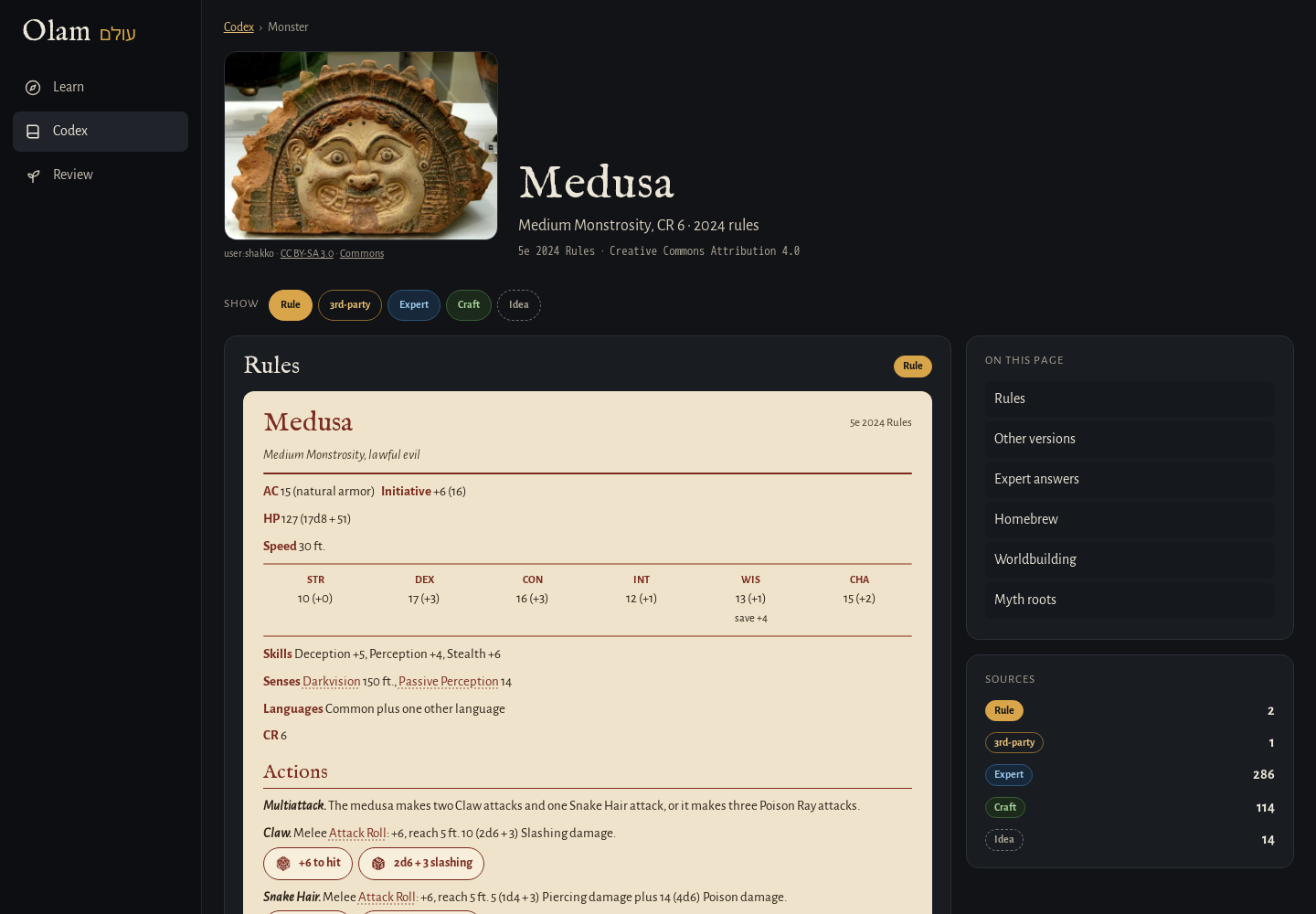 A wiki page: the rules first, then every other shelf.
Searching
Type anything into the search box, like "owlbear", "grappling", "fireball" or "the Menagerie", and press Enter. Results come in two columns: the library on the left (rules, monsters, spells and so on, each with its picture or icon and its badge), and the archives on the right (the best matching threads from RPG Stack Exchange, D&D Wiki and the others, with their votes).
You can narrow it down:
- Edition. At the top: 2024 (the default), 2014, or Every edition. Olam teaches the 2024 rules, so they come first, but the 2014 versions are there when you need them, for an older adventure or a question from a friend.
- Type. All, Rules, Monsters, Spells, Magic items, Equipment, Classes, Origins & feats, and Your library for your own books.
- 3rd-party books. Off by default. Turn it on to include Kobold Press, EN Publishing (A5e), Black Flag and the other open-licensed books from Open5e.
With nothing in the search box, the Codex shows tiles to browse the 2024 rules by kind: Monsters, Spells, Magic items, Equipment, Classes, Species, Backgrounds, Feats, Conditions and the Rules Glossary. Each one opens a gallery, A to Z, with a picture or an icon for everything in it, so you can just wander through the monsters the way you'd flip through a Monster Manual. There's also an Owlbear tile, which is a good wiki page to start with if you want to see what one looks like.
Pictures and icons
Wherever Wikipedia has a free picture of something, Olam shows it: an old engraving of a basilisk, a Greek vase with the hydra on it, a museum photo of a longsword, a photo of a real brown bear. The rest get an icon, chosen by what they are: the kind of monster (a dragon's head, a tentacle for an aberration), the school of a spell, the kind of item, the class or the condition. The pictures come in with olam fetch pictures (see Install), and the icons are from game-icons.net.
Every picture says who made it and its license, and links to its page on Wikimedia Commons, so you can always check where it came from. They're matched by name, and every one was looked at before it went in. If one ever looks wrong, tell me and I'll take it out.
A wiki page
Every entry has a hub page that pulls together everything Olam knows about it. Its picture is at the top, next to its name, with who made it and its license under it, and clicking it opens the Wikipedia article it came from. Then there's one section per shelf, in this order:
- Summary — a short plain-English summary from Claude, if you press Summarize (only with the AI features on).
- Rules — the official text, with a statblock for a monster. Rules it uses lists the rules terms the entry leans on, so you can click through to anything you don't know yet.
- Other versions — the same thing in the other edition and in third-party books, each with its book and license. For a monster, it also lists its relatives, like the other kinds of goblin.
- Expert answers — the best threads from RPG Stack Exchange about it.
- Homebrew — fan-made versions from D&D Wiki, marked Idea · not official with a dashed border, so you never mistake one for a rule.
- Worldbuilding — questions about it from Worldbuilding Q&A, useful for thinking about where it fits in your world.
- Myth roots — threads from Mythology Q&A about the myths behind it. For a made-up word like "owlbear", Olam even splits it into "owl" and "bear" to find them.
- In your books — passages from your own books that mention it, if you've added a Calibre library. These are marked Private and never leave your server.
- In your world — notes in your vault that mention it.
The Show buttons at the top turn each shelf on and off, so if you only want the rules right now, you can hide everything else.
On a monster's page, the statblock has buttons for each attack, each with the die it rolls. Press the to-hit button and Olam rolls a d20 and adds the bonus. Press the damage button and it rolls the damage. The result pops up in the bottom corner, with the dice shown. There are also two buttons at the top for your world: Add to vault, which makes a statblock note for it in your vault, and Add to encounter, which adds it to your next fight (see Your vault). With the AI features on, Ask about this opens Ask with a question about it ready to go.
Rules terms are links
Anywhere in Olam (a lesson, a wiki page, an answer), the name of a rule, like Prone, Bonus Action or Difficult Terrain, is a link to its wiki page. Hover over one and you get a short preview, so you can check what it means without leaving the page. Each term is linked the first time it comes up on a page, so the text doesn't turn into a wall of links.
Reading the archives
Click a thread from an archive and Olam opens it on its own page: the question with its votes and who asked it, and then the answers, each with its author. Every page names its authors and has a Read it on … button that opens the original site, because the licenses ask for it and because it's only fair. If you're running Kiwix and open Olam on the same host name, there's also Open in Kiwix, to read the whole archive around it.
Next step
If you'd rather just ask a question in plain words, the next page is Ask and the AI.