Recipes
The home page
Every recipe in the kitchen, newest first, as cards with the photo, the dish and the creator. A card says Missing amounts when the reel didn't give them all, and the little marks on the photo are yours: saved, made, and your rating.
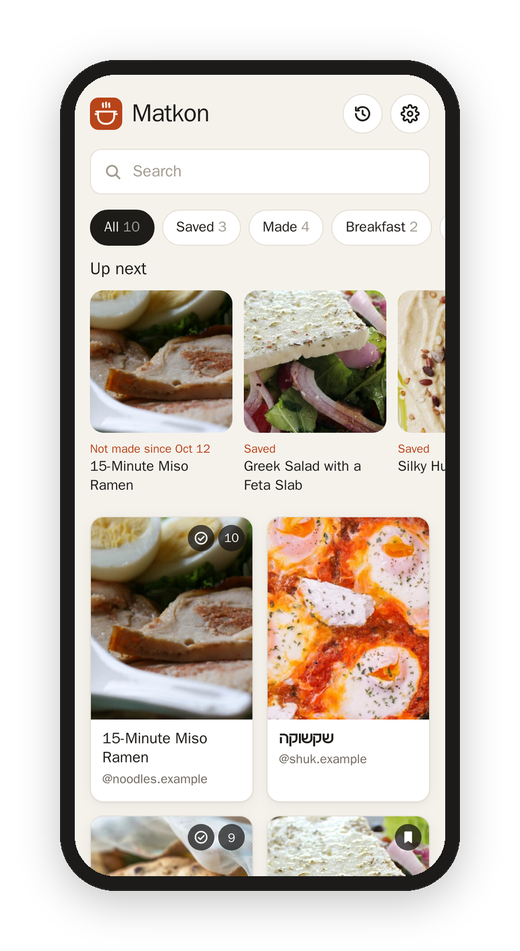
- Search looks at the dish, the creator, the cuisine and every ingredient, so "chickpeas" finds the hummus. Hebrew recipes are found by their English words too.
- The kinds under the search are All, Saved, Made, and then Breakfast, Mains, Salads & sides, Soups, Bread & dough, Baking & sweets, Snacks, Sauces & dips and Drinks.
- Up next is a row of what to make, picked from what you save, cook and rate. See Memory and history.
A recipe
The top of a recipe has the photo (a still of the finished dish from the reel), the name, a line about what it is, the creator's account and their recipe page when there is one, and the facts the reel gives: how many it serves or makes, the times, the oven.
- Watch the reel plays the video right there.
- Start cooking opens cooking mode. If you were in the middle of it, it says Continue · step 4.
- Ingredients tick off as you tap them, and the ticks are remembered on all your devices for 12 hours.
- Steps come with a timer button wherever a step gives a time.
- Tips are the creator's own asides.
- Nutrition shows only when the reel states it, and only if your account has it on.
- Not in the reel lists what a cook would still need that the reel didn't give, like "how much butter and garlic".
- Mine is yours: I made it, a rating and notes. See Memory and history.
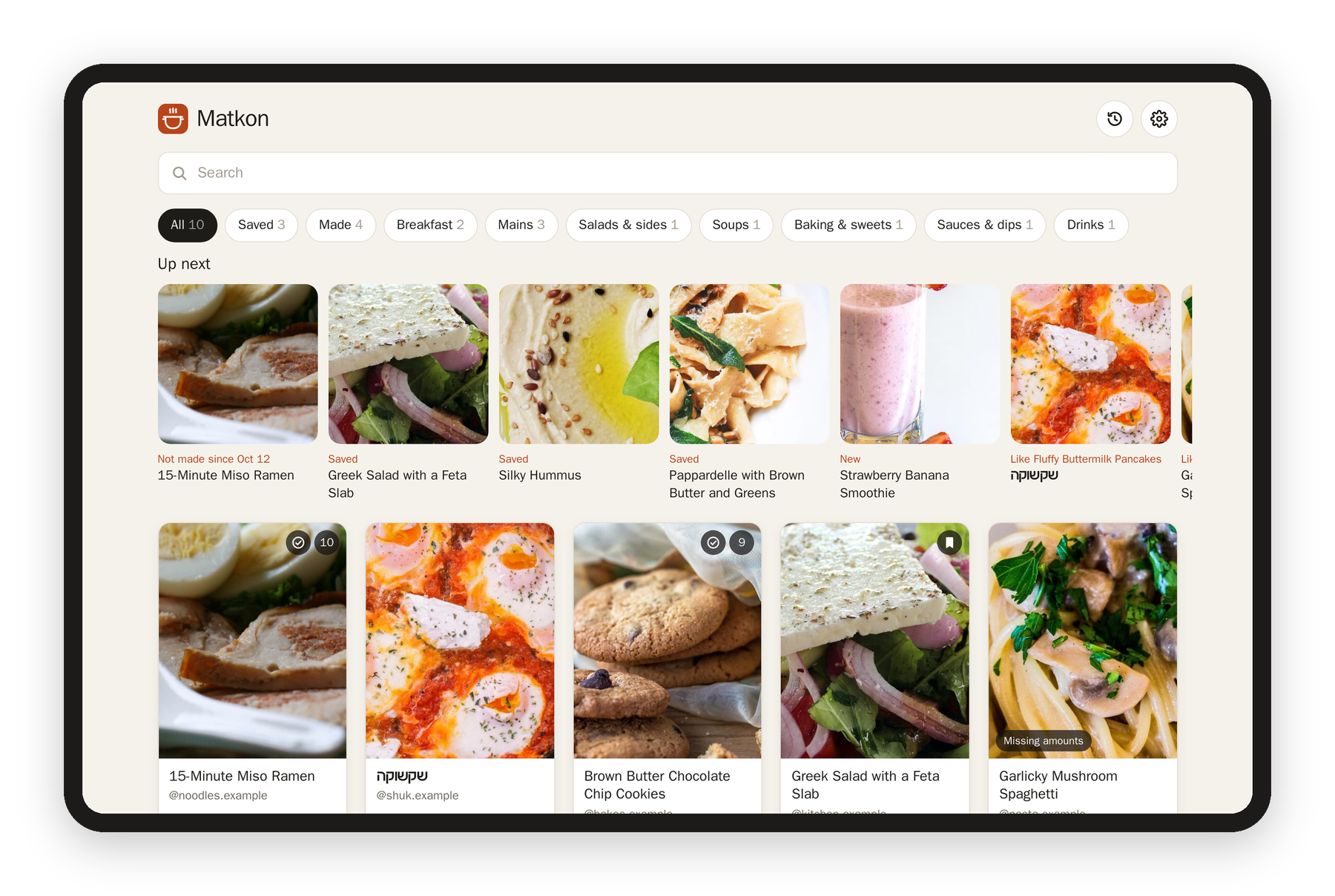
On a tablet or a computer, the photo stays on the side and the ingredients and steps sit next to each other.
Hebrew and English
A Hebrew recipe has a button at the top that says English. It switches the whole page to an English version, left to right, and the button turns into עברית to switch back. Your ticks, notes and place in the steps stay the same, because the English version has the same ingredients and steps in the same order. Cooking mode follows whichever one you picked.
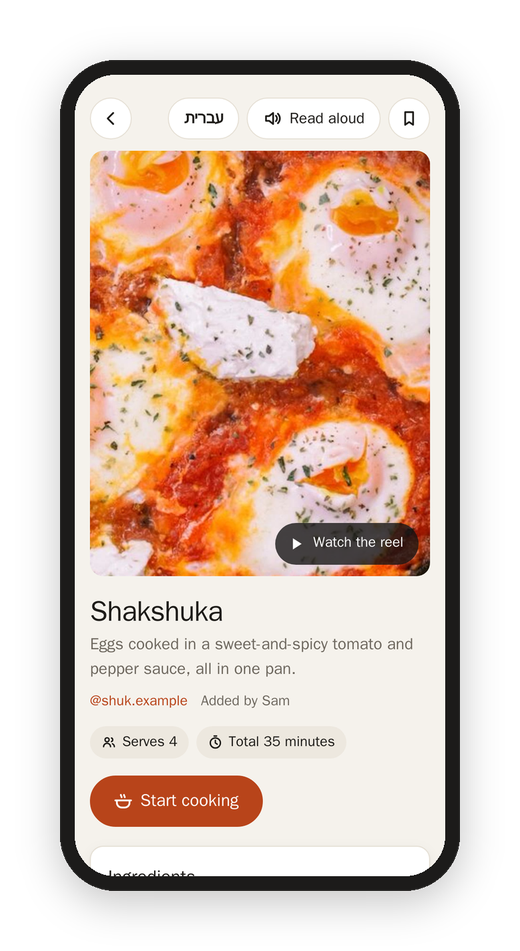
If you'd rather always read Hebrew recipes in English, turn on Hebrew recipes in English in Settings.
Read aloud
Read aloud at the top reads the whole recipe, the ingredients then the steps, in the browser's own voice (a Hebrew voice for a Hebrew recipe, if the device has one).
Next: Cooking