The scene chart
The scene chart is what you see first when you open a play, and it's the heart of Play X-Ray. This page goes through how to read it and what the three rows of buttons above it do.
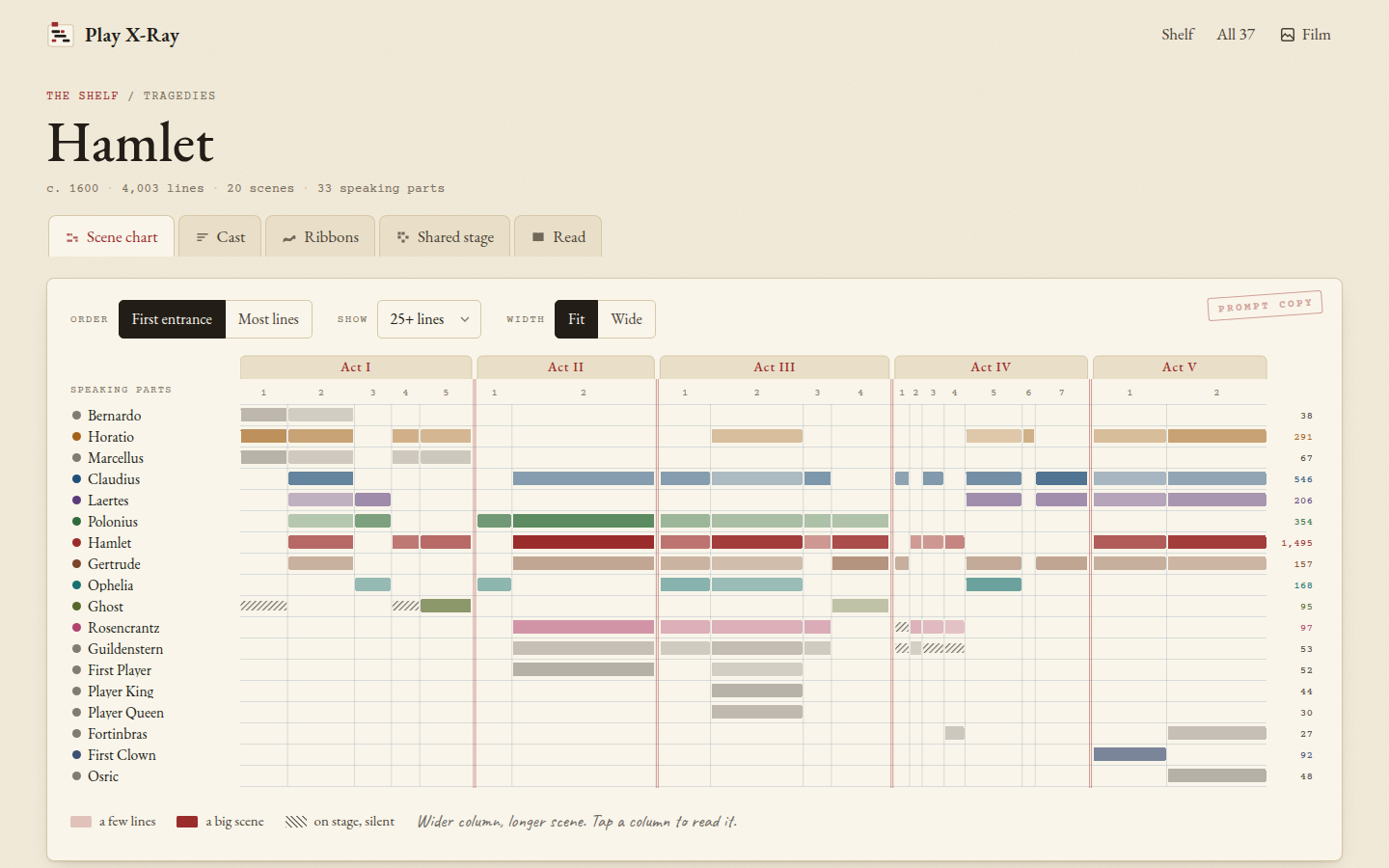 Hamlet, with the parts under 25 lines hidden.
Rows and columns
Each row is a speaking part, with its name on the left and its total number of lines on the far right, in the same colour as its marks. Each column is a scene. The scenes sit under tabs for the acts, like the tabs in a prompt book, and the little number under each tab is the scene ("2" under Act III is 3.2). Prologues and choruses are marked "P" or "C", an Induction or an Epilogue gets its own tab, and red double rules run down the chart where one act ends and the next begins.
The important thing is that every column is as WIDE as its scene is long. A 600-line scene takes up a lot of the chart and a 30-line scene is a sliver, which means you see the rhythm of the play straight away: in Hamlet, 2.2 and 3.2 are huge, and Act IV opens with a run of short scenes one after another.
The marks
A mark means that part speaks in that scene, and the stronger the colour, the more they say. The ten biggest parts each get their own ink, which they keep everywhere in Play X-Ray, and the smaller parts are pencil grey.
Pencil hatching means the character is on stage but silent: a stage direction brings them on and they never say a word. Look at the Ghost in Hamlet 1.1, who walks on twice and doesn't speak, or Lavinia in Titus Andronicus, who is on stage in six scenes after 2.4 without a single line. That part is read from the entrances, so take it as a good guide rather than a full record.
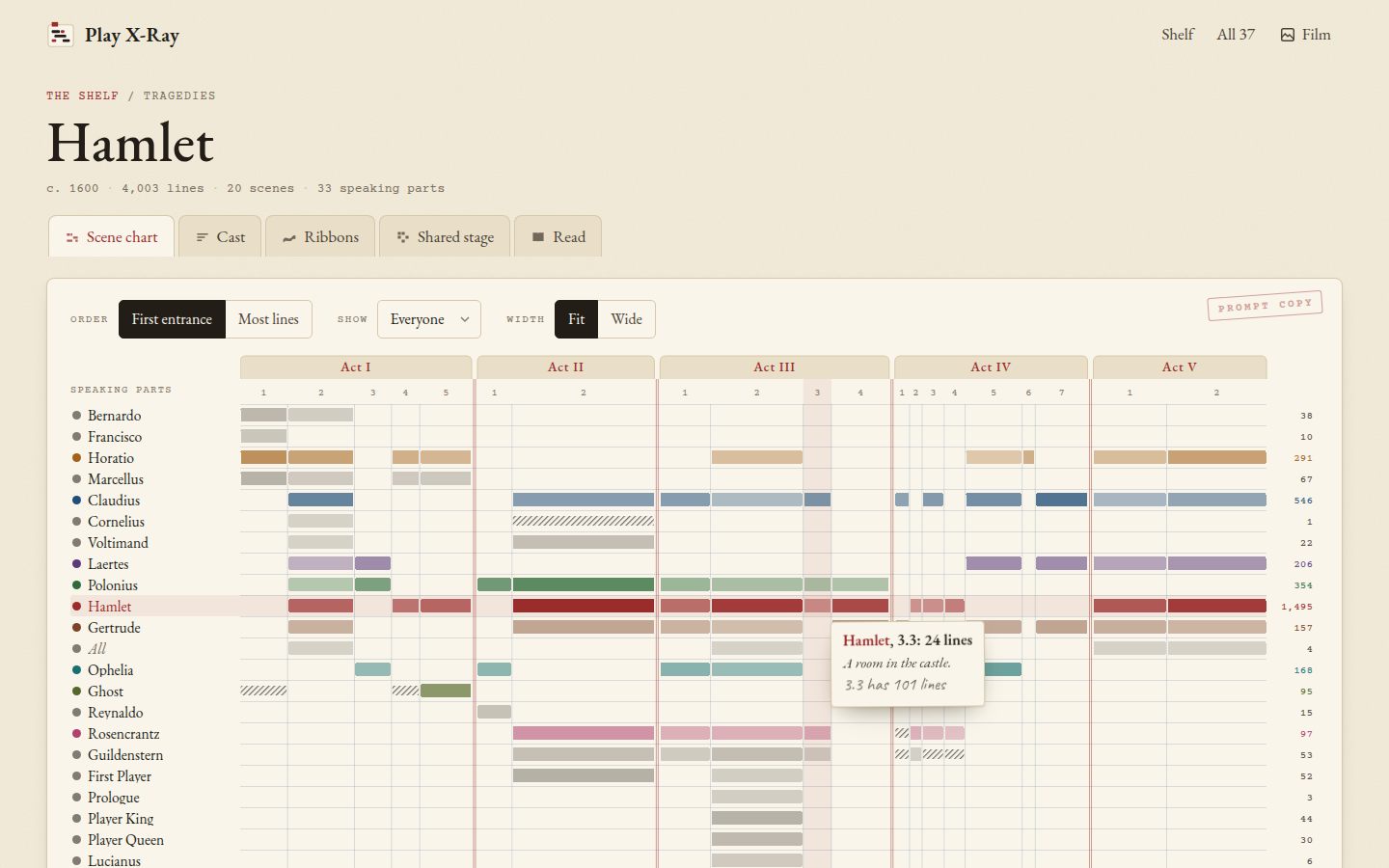 Hover a mark and a slip of paper says who, where and how much.
Hovering, tapping and reading
On a computer, hover over any mark and a slip of paper tells you who, which scene and how many lines, for example "Hamlet, 3.3: 24 lines", with the place the scene is set and how long it is. Click anywhere in a column and that scene opens in the reader. On a phone or tablet, tap a mark to get the slip, then tap Read 3.3 on it (or tap the same spot again) to open the scene. The scene numbers along the top always go straight to the scene, and the names on the left open that character in the shared stage.
Order, Show and Width
Order puts the rows in order of First entrance, which reads like the play, or Most lines, which puts the big parts at the top.
Show hides the small parts. Everyone shows every speaking part, including groups like "All" in grey italics, and 10+ lines, 25+ lines, 50+ lines and 100+ lines keep only the parts that size and up. A play like Henry VI, Part 2 has more than 60 speaking parts, so this is the quickest way to see the main story.
Width is Fit, which squeezes the whole play into the screen, or Wide, which gives every line of the play a little more room and lets you scroll sideways inside the chart. On a phone, Fit is the overview and Wide is for looking closely.
Play X-Ray remembers these three settings for next time, in your own browser.
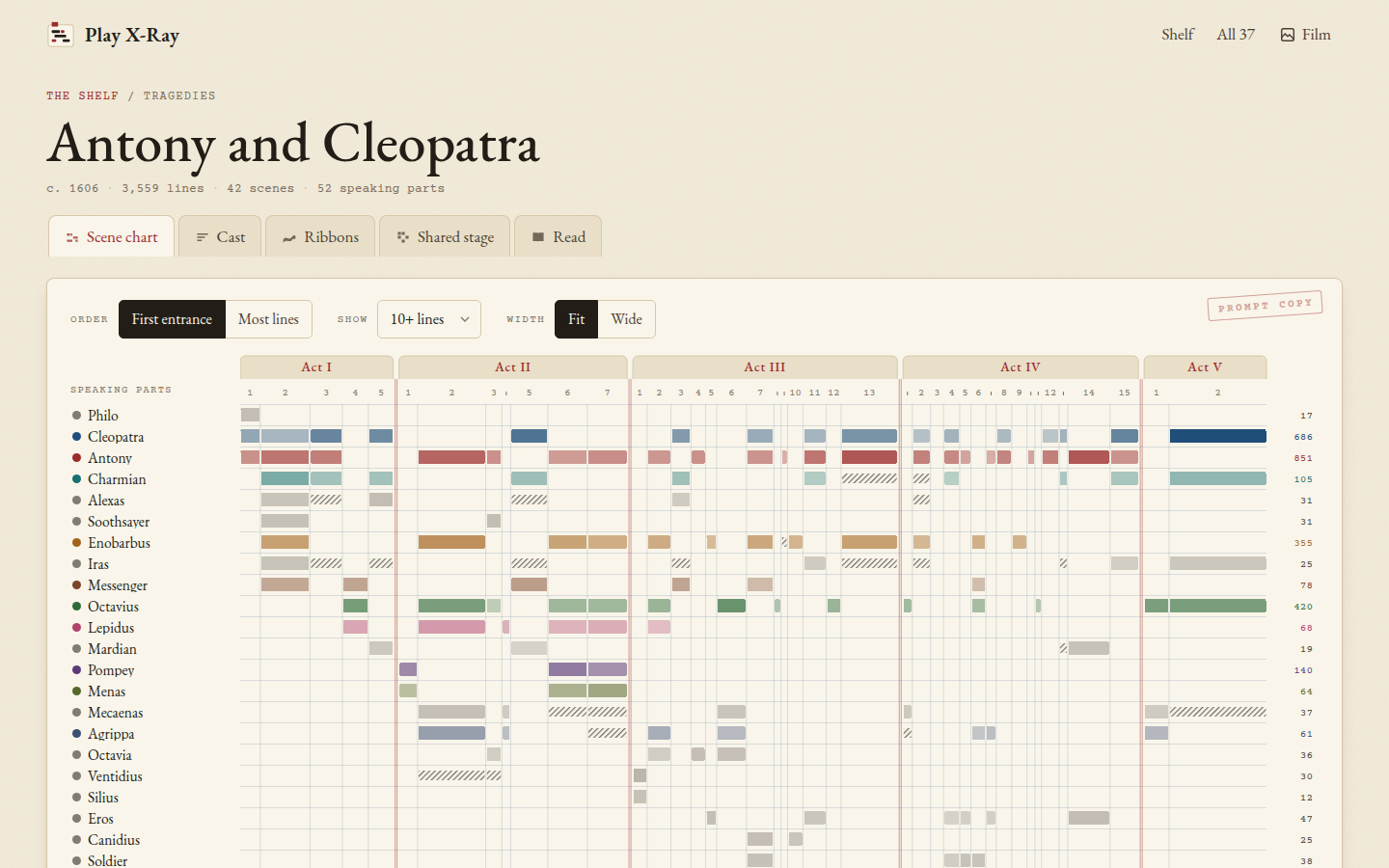 Antony and Cleopatra jumps between Rome and Egypt in 42 scenes, some only a few lines long.
Next step
Open a play you know, set Show to 25+ lines and follow one character across the chart. Then go on to the other views of the same play.